![Agway Energy Services Logo_2025.png.png]](https://info.agwayenergy.com/hs-fs/hubfs/Agway%20Energy%20Services%20Logo_2025.png.png?height=40&name=Agway%20Energy%20Services%20Logo_2025.png.png)
Step 1: Fill Out the Search Form
Go to https://dispatch.agwayenergy.com/dispatch-ticket
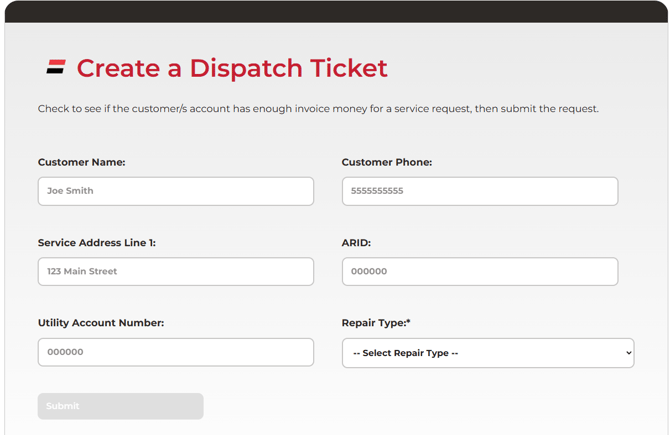
When the page loads, complete the following fields to locate the customer's account:
- At least one non-required field (Customer Name, Customer Phone, etc.)
- Repair Type (Heating, AC, or Electric line); required
Important — how filters work: The non-required fields (Customer Name, Customer Phone, Service Address Line 1, ARID, Utility Account Number) are OR filters, not AND filters. This means filling in more than one field will broaden your results, not narrow them. For the most targeted search, use only the single most reliable identifier you have (e.g., ARID alone, or phone number alone).
If no accounts match the search, the message "No accounts found matching the search criteria" is displayed.
Click "Submit" to search.
Step 2: Review Search Results
After clicking "Submit," a results table appears showing all matching accounts.
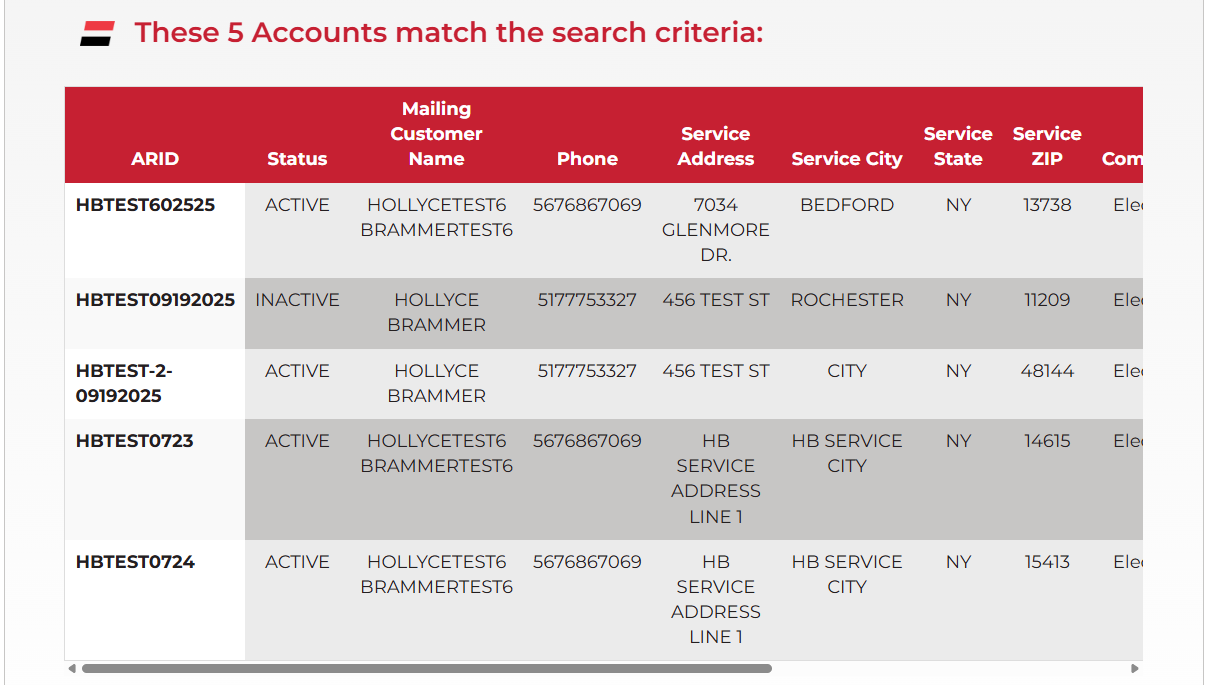
Each row displays:
- ARID, Status, Customer Name, Phone, Service Address, City, State, ZIP
- Commodity, Billing Customer Type
- NS Start Date, NS Drop Date, Utility
Only ACTIVE accounts will have a clickable Select button. Inactive accounts are greyed out.
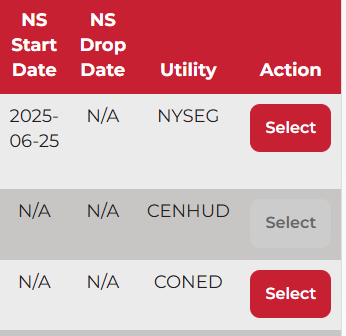
Click Select next to the correct account to proceed.
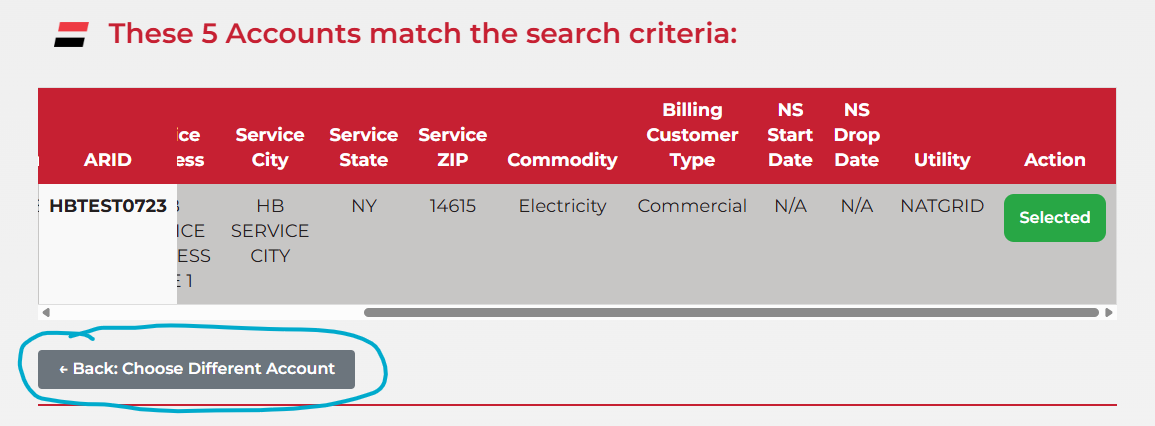
- If you accidentally selected the wrong account, click ← Back: Choose Different Account — Returns to the full search results table so you can select a different account. No data is lost.
Step 3: Review Account & Coverage Details
After selecting an account, the following information is displayed:
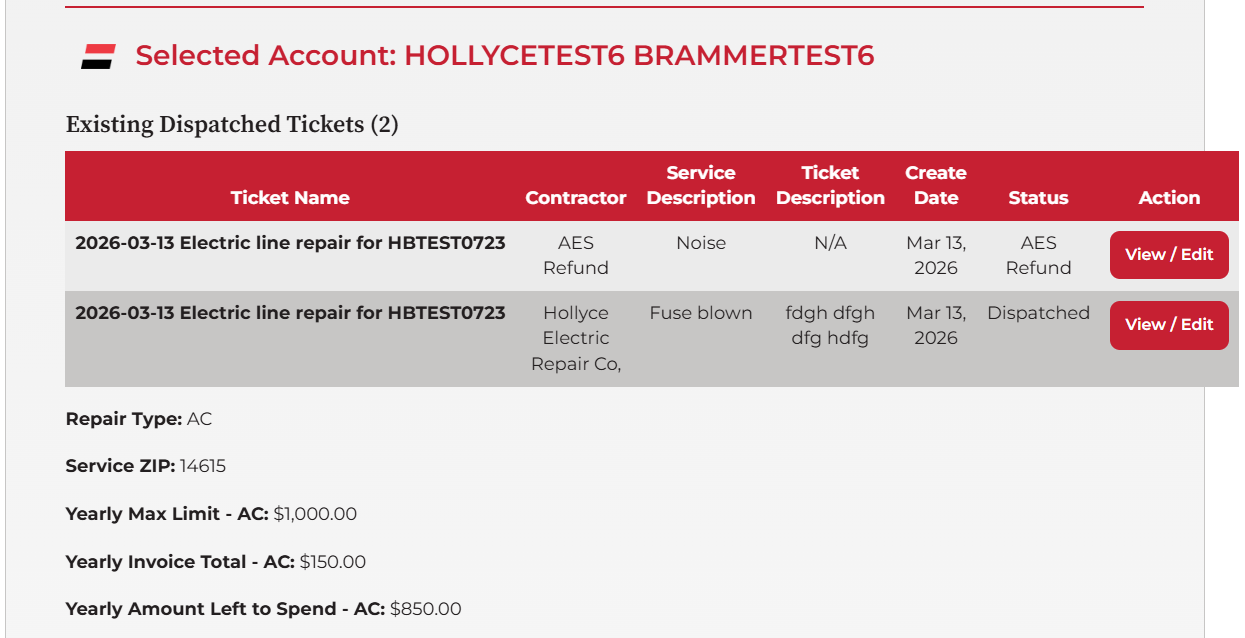
- Repair Type (as chosen in Step 1)
- Service ZIP Code
- Yearly Max Limit — the total EnergyGuard coverage cap for this repair type
- Yearly Invoice Total — amount of EnergyGuard funds already used this year
- Yearly Amount Left to Spend — remaining coverage available
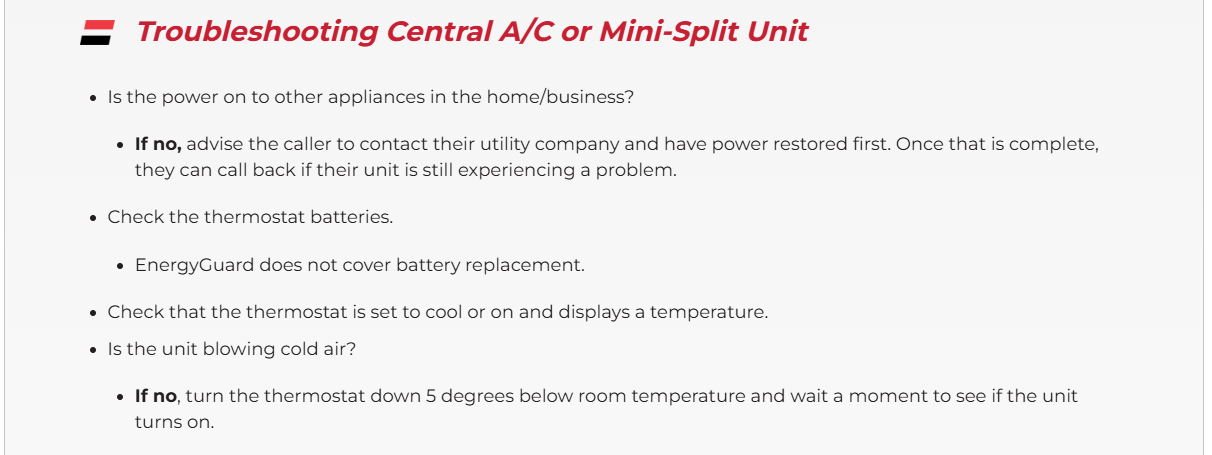
A troubleshooting guide is also displayed based on the repair type selected (Natural Gas, A/C, or Wiring). Review this with the customer before proceeding. Example:
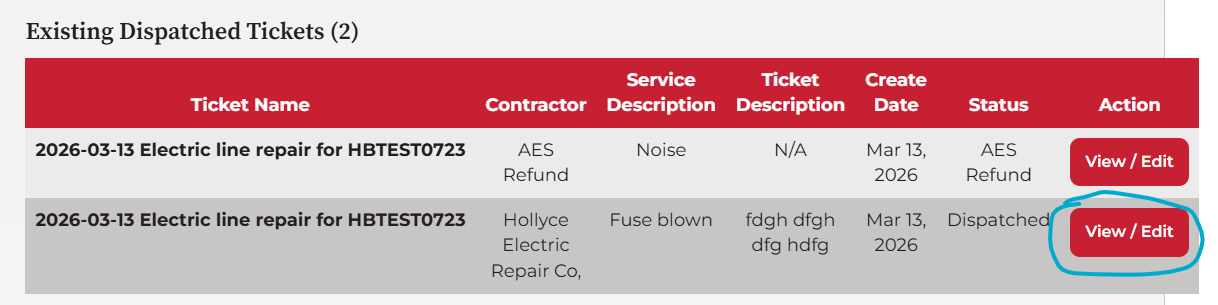
Existing Tickets
Below the account details, any previously created dispatch tickets for this account are listed in a table:
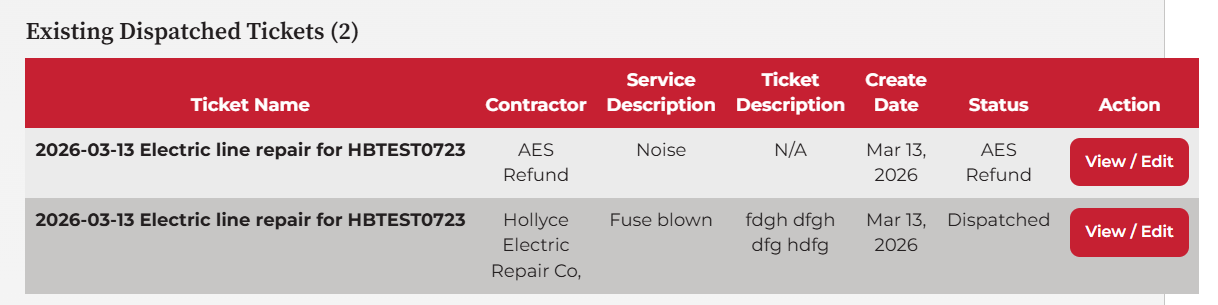
Click View / Edit to open and modify an existing ticket (see Editing an Existing Ticket below).
Step 4: Enter CSR Name
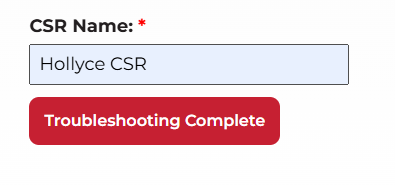
Before completing troubleshooting, enter your name in the CSR Name field (required). This is recorded on the ticket.
Step 5: Click "Troubleshooting Complete"
Once you have reviewed the troubleshooting guide with the customer, click Troubleshooting Complete. This:
- Creates a new dispatch ticket in HubSpot
- Names the ticket automatically:
[Today's Date] [Repair Type] repair for [ARID] - Records the CSR name on the ticket
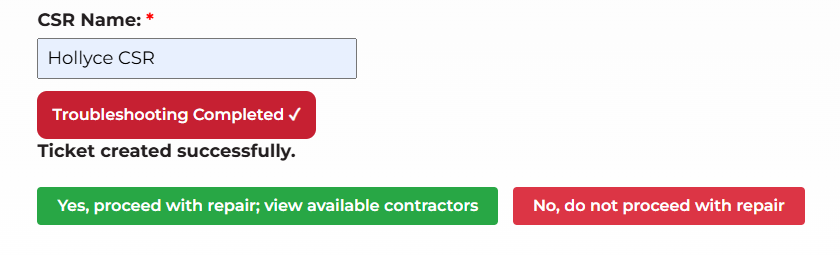
A confirmation message — "Ticket created successfully" — appears once complete.
Step 6: Proceed or Decline the Repair
Two buttons appear after the ticket is created:
Option A — Yes, Proceed with Repair
Clicking "Yes, proceed with repair; view available contractors" retrieves a list of contractors for the customer's ZIP code and repair type.
-
If no contractors are found for the ZIP/repair type, a "No contractors found" message is shown — use the AES Refund option described below.
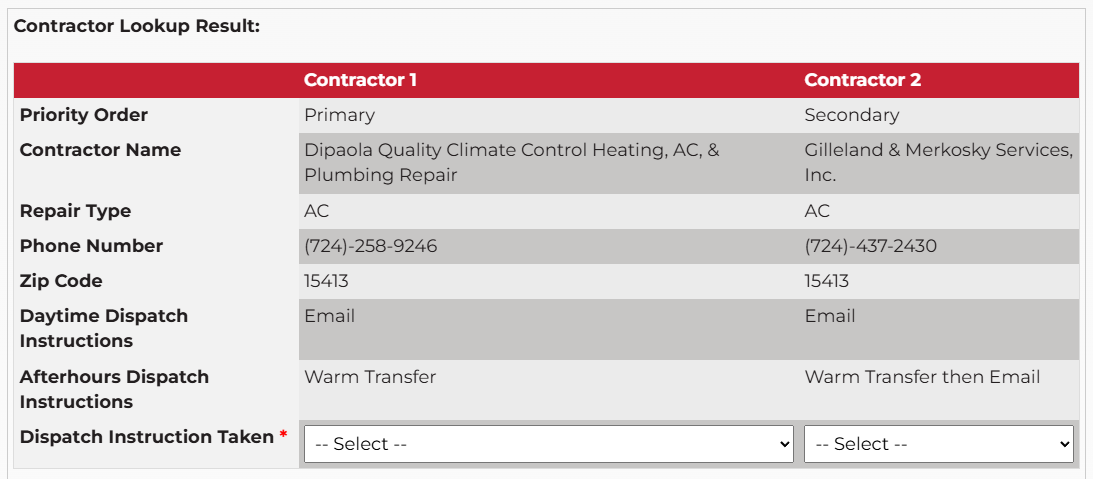
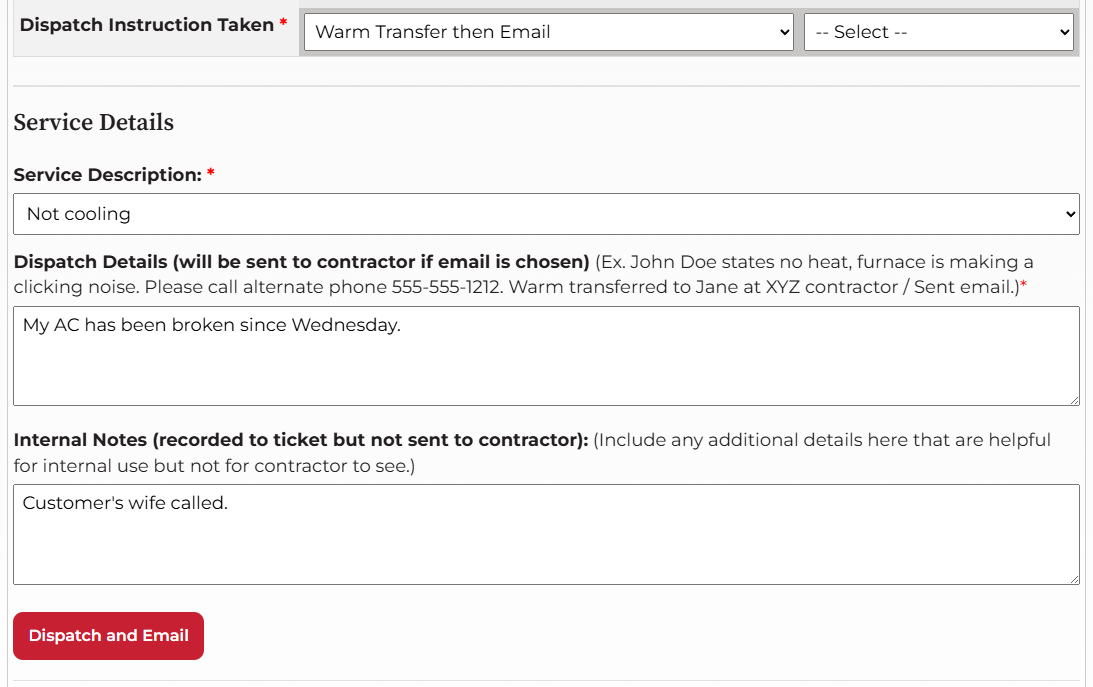
The contractor table displays all available contractors with their details (name, phone, availability, etc.). For each contractor, select a Dispatch Instruction Taken from the dropdown:
| Option | Description |
|---|---|
| An email will be sent to the contractor | |
| Warm Transfer then Email | You transfer the call to the contractor, then send a follow-up email |
The Dispatch button remains disabled until a Dispatch Instruction is selected for one contractor.
Option B — No, Do Not Proceed
Clicking "No, do not proceed with repair" records the decision on the ticket without dispatching a contractor. The agent has the opportunity to enter Internal Notes on the ticket.
Step 7: Complete the Service Details Form
Before dispatching, fill in the following fields:
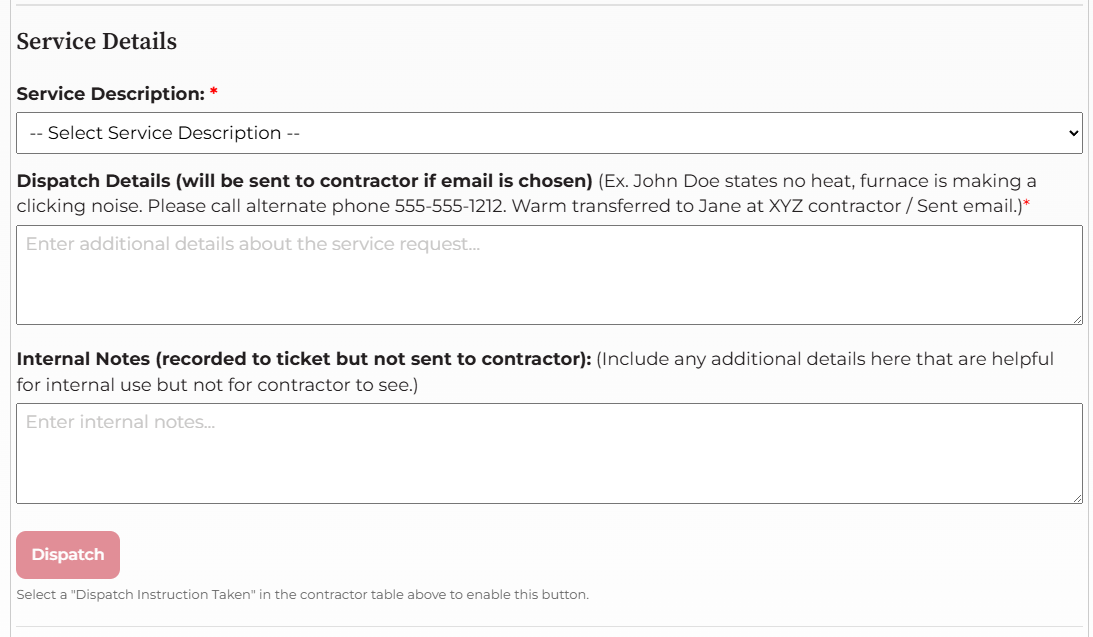
- Required fields that are missing will be highlighted in red with an error banner.
Example Dispatch Details:
John Doe states no heat, furnace is making a clicking noise. Please call alternate phone 555-555-1212. Warm transferred to Jane at XYZ Contractor / Sent email.
Step 8: Dispatch or AES Refund
Dispatch a Contractor
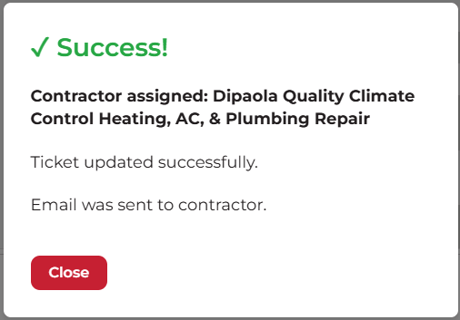
Once a contractor and dispatch instruction are selected and the service details form is complete, click Dispatch (or Dispatch and Email).
- Updates the ticket with the service description, dispatch details, and internal notes
- Copies selected contractor information to the ticket
- Sends an email to the contractor
- Displays a success confirmation
AES Refund Option
If no contractor is available or the customer prefers to seek their own repair, use the AES Refund button.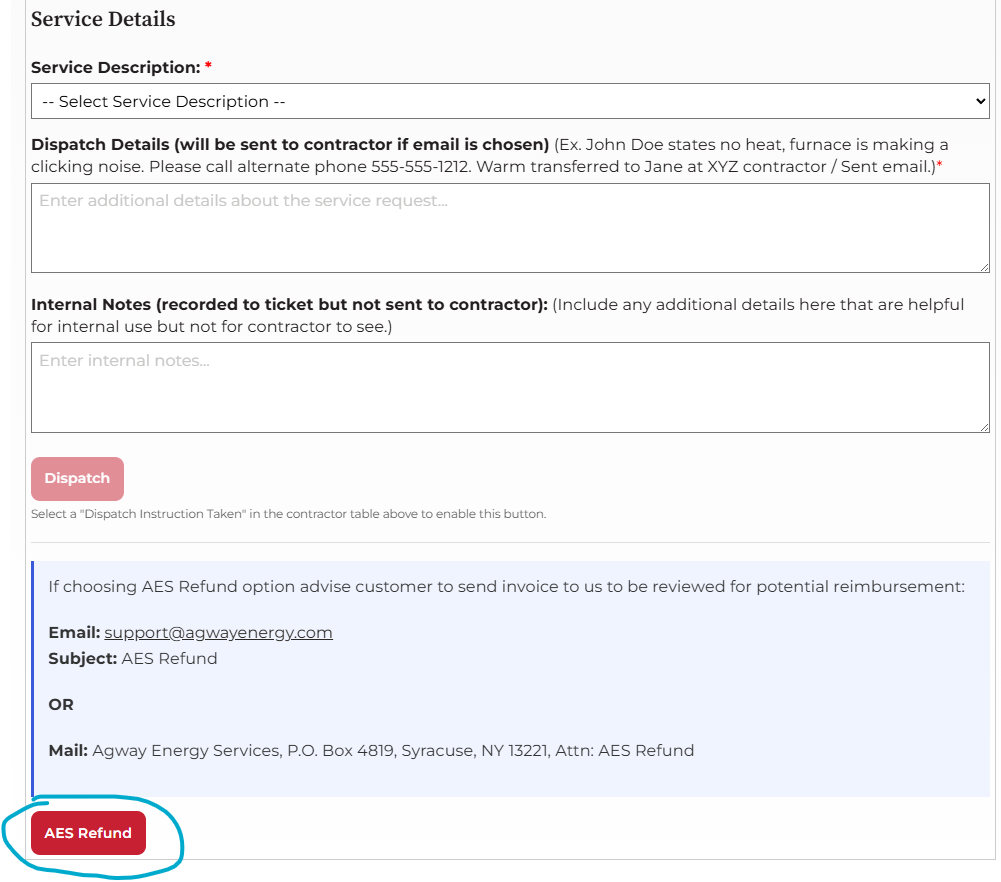
This routes the ticket through the AES Refund pipeline. Advise the customer to submit their invoice to:
- Email: support@agwayenergy.com
- Subject: AES Refund
OR
- Mail: Agway Energy Services, P.O. Box 4819, Syracuse, NY 13221, Attn: AES Refund
Editing an Existing Ticket
Clicking View / Edit on an existing ticket opens a modal with the following options:
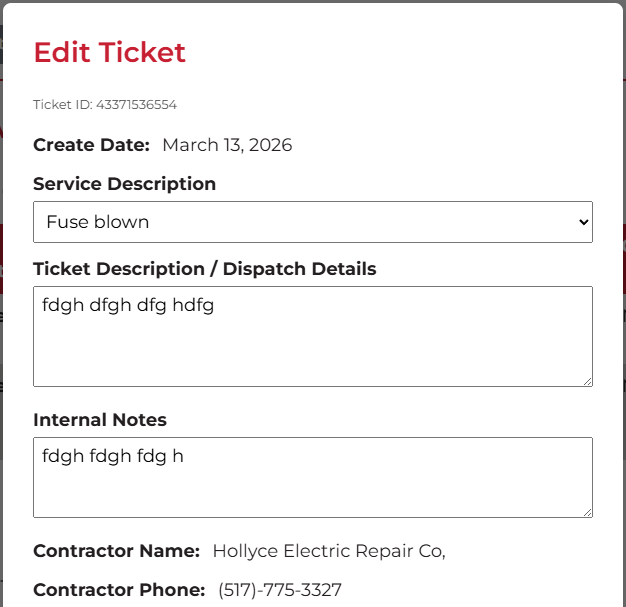
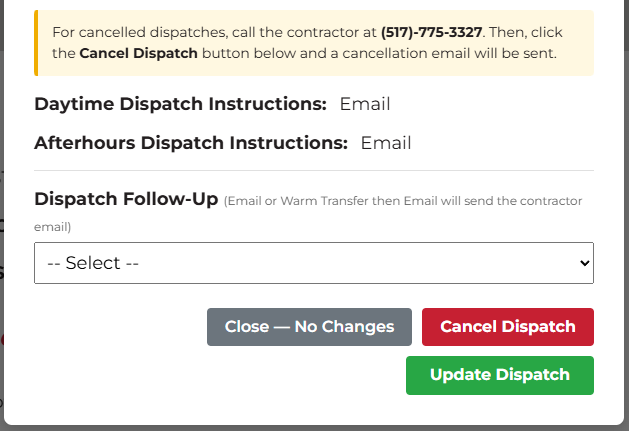
Update Dispatch
Click Update Dispatch to save changes. If a Dispatch Follow-Up method is selected, a follow-up email is sent to the contractor automatically.
Cancel Dispatch
Click Cancel Dispatch to cancel the repair. This will:
- Prepend
--- Please CANCEL the below request: ---to the dispatch details - Update the ticket stage to Not Dispatched
- Automatically send a cancellation email to the contractor
Before clicking Cancel Dispatch: Call the contractor directly at the phone number shown in the modal to notify them verbally.
Page Refresh
- After any successful update or cancellation, the page reloads automatically.