![Agway Energy Services Logo_2025.png.png]](https://info.agwayenergy.com/hs-fs/hubfs/Agway%20Energy%20Services%20Logo_2025.png.png?height=40&name=Agway%20Energy%20Services%20Logo_2025.png.png)
Step 1: Navigate to the Renewal Quote Screen
- Log into HubSpot.
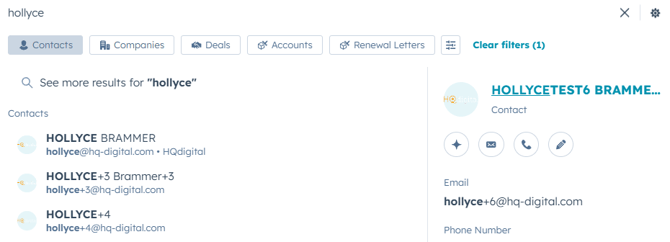
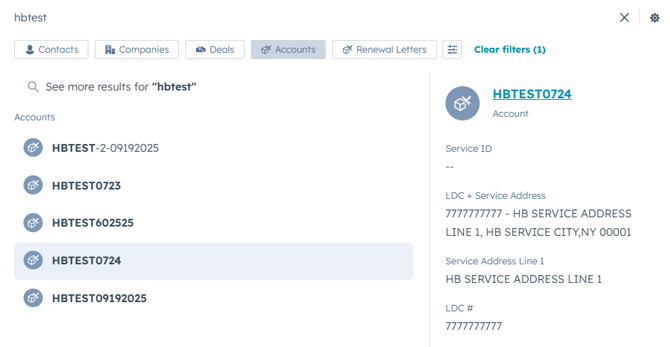
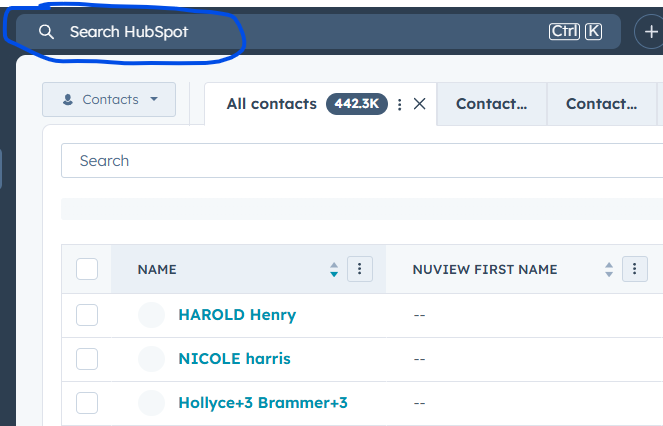
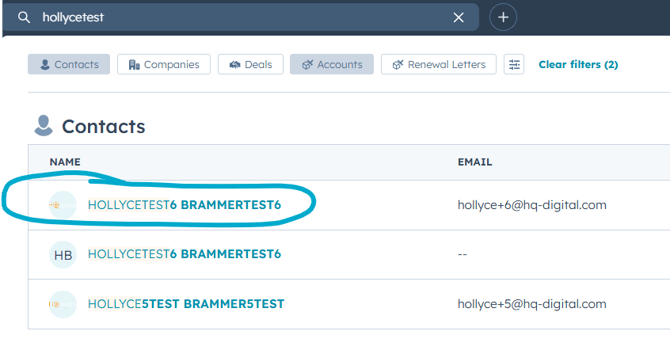
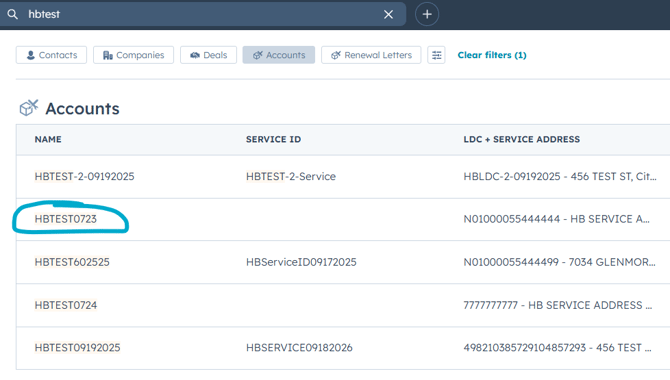
- Search for the Contact who is on the phone or their Account. Use the global search at the top of the HubSpot window.
- Phone number is the most accurate way to search for a Contact, but you can also search by name or street address.
- ARID is the most accurate way to search for an Account.
- When using the global search, you might need to filter the results accordignt o whether you are searching for a Contact or Account.
- Contact:
- Account:
- Contact:
- When you find a matching Contact or Account, click it.
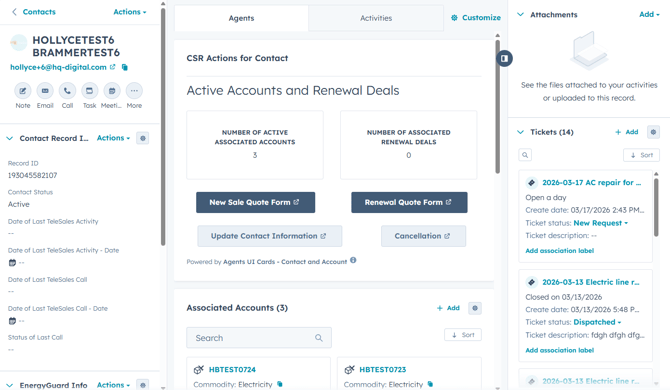
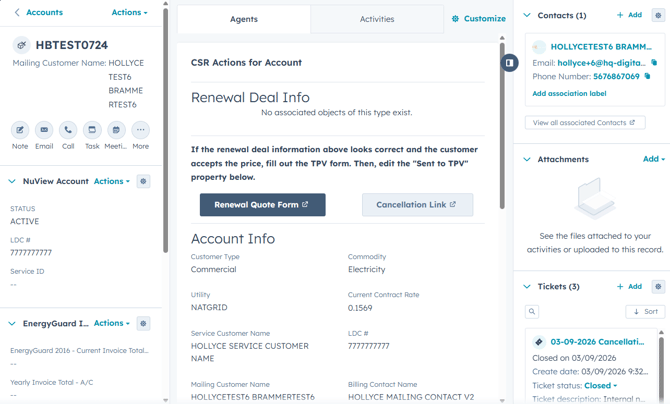
- Wait for a moment until the screen fully loads. The middle column will contain buttons describing various actions.
- Contact:
- Account:
- Contact:
- Click the "Renewal Quote Form" button in the center column from either the Contact or the Account.
- The Renewal screen displays all of the customer's Accounts, even if you accessed it from a single Account screen.
-
- The page is pre-loaded with the customer's information based on the link you opened. You do not need to enter the customer's name or email manually.
- Your agent name and email will appear at the top of the page confirming you are the agent on record for this session.
Step 2: Review the Customer's Accounts
When the page loads, you will see two tables:
1) Renewal Deal Information (top table) This shows accounts that may be eligible for renewal. Review the following rows for each account:
- Utility Account Number — The unique identifier for each account
- Renewal Available? — Indicates whether a renewal offer is available:
- "Yes, a renewal is available!" — The customer has not yet responded to this renewal offer
- "Yes. You previously declined. Are you ready to consent at this time?" — The customer previously said No but can still consent now
- "Not at this time." — No renewal action is needed for this account
- Utility / Commodity — The utility provider and energy type
- Renewal Rate — The proposed rate for the new contract
- Contract Type — The type of renewal contract being offered
- Note — Displays the month the current contract may expire
- Renewal Contract Term — The start and end dates of the proposed renewal contract
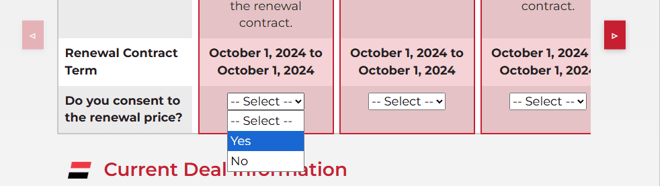
- Do you consent to the renewal price? — A dropdown field for recording customer consent
Tip: Accounts highlighted with a red border require action — the customer needs to make a consent decision on those accounts.
2) Current Deal Information (bottom table) This shows the details of the customer's existing active contract for reference, including the current rate, contract dates, service address, and billing information.
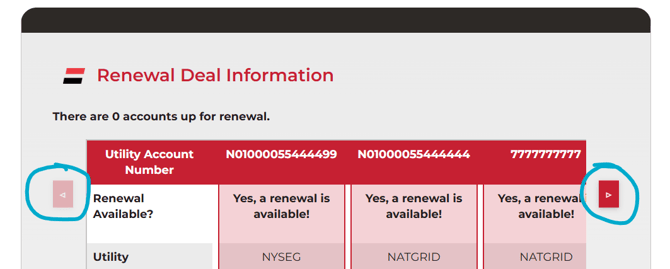
Navigating the Tables: If the customer has multiple accounts, use the arrow buttons on the left and right sides of the screen to scroll horizontally through all accounts.
Step 3: Record the Customer's Consent Decision
For each account that shows a renewal is available, a dropdown field labeled "Do you consent to the renewal price?" will appear in the last row of the Renewal Deal Information table.
- Ask the customer whether they consent to the renewal rate shown.
- Select Yes or No from the dropdown for each eligible account.
- Accounts where no renewal is available will show N/A — no action is needed.
- Repeat for all accounts that have a dropdown.
Step 4: Save the Consent Selections
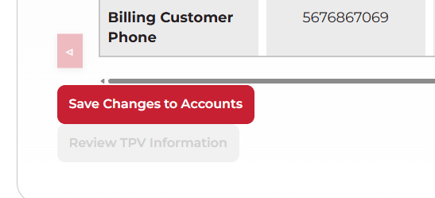
Once you have recorded the customer's response for all applicable accounts, scroll to the bottom of the page and click the "Save Changes to Accounts" button.
- A status message will appear confirming "All consent responses saved ✔️"
- The system will automatically create a renewal ticket in HubSpot for each account where a selection was made.
- If the customer consented Yes on at least one account, the "Review TPV Information" button will become active (clickable).
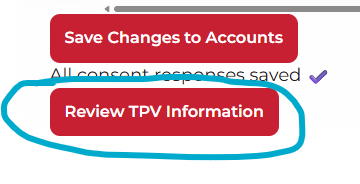
Important: Do not skip this step. You must save before proceeding to TPV.
Step 5: Review TPV Information ("Yes" Accounts Only)
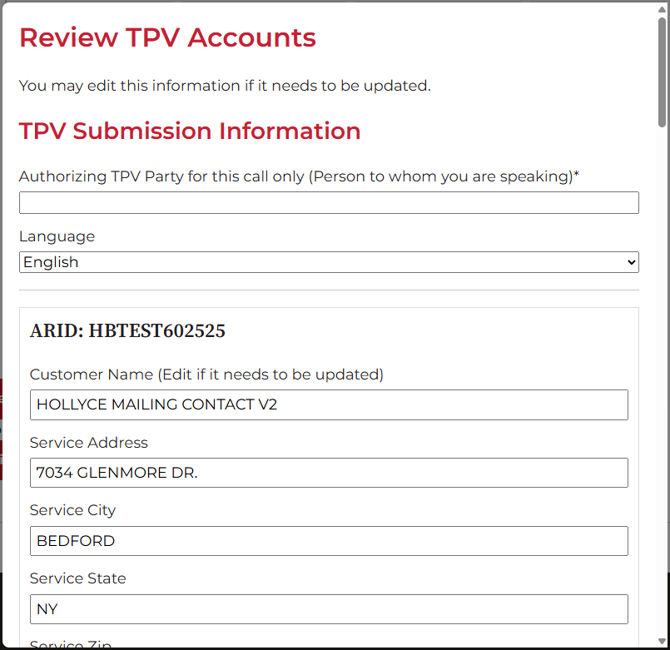
If the customer agreed to renew at least one account, click the "Review TPV Information" button. A review panel will open.
At the top of the panel:
- Authorizing TPV Party (Required) — Enter the full name of the person you are speaking with on the call. This is the person who will be authorizing the renewal.
- Language — Select the language for the TPV call. Defaults to English; change to Spanish if needed.
For each consenting account, review and update the following fields if any information needs to be corrected:
- Customer Name
- Service Address, City, State, Zip
- Mailing Address, City, State, Zip
- Service Contact Name
- Email Address
- Phone Number
- Customer Type
- Company Name
- Utility Account Number Label / LDC Label (read-only — cannot be edited)
- LDC (read-only — cannot be edited)
If you make any changes to the customer's information:
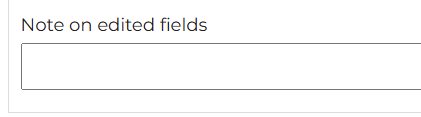
- Fill in the "Note on edited fields" text box to describe what was updated and why. This note will be saved to the renewal ticket.
Note: The "Authorizing TPV Party" field must be filled in before the "Send to TPV" button becomes active.

Step 6: Send to TPV
Once you have reviewed and confirmed all information:
- Click the "Send to TPV" button.
- The system will submit the renewal information to the TPV service.
On Success: A confirmation popup will appear displaying:
- TPV Confirmation Number — Record this number for your records.
- TPV Phone Number — This is the number to which you will transfer the customer.
- Transfer the customer to the TPV phone number shown.
- Once the transfer is complete, click Close on the confirmation popup, then close the tab.
If there is an error: An error message will display with details. Do not close the tab — note the error and contact your supervisor or technical support.
After the Call
The system automatically handles the following once TPV is sent — no additional action is required from you:
- Saves the TPV confirmation number to the relevant deal records in HubSpot
- Updates the renewal ticket with any customer information edits made during the review step
- Records the sales group and agent assignment on the deal