![Agway Energy Services Logo_2025.png.png]](https://info.agwayenergy.com/hs-fs/hubfs/Agway%20Energy%20Services%20Logo_2025.png.png?height=40&name=Agway%20Energy%20Services%20Logo_2025.png.png)
Add existing views
You'll want to add a view for Customers and a view for Leads. These views already esist in HubSpot and need to be added to your screen.
- Navigate to "Contacts."
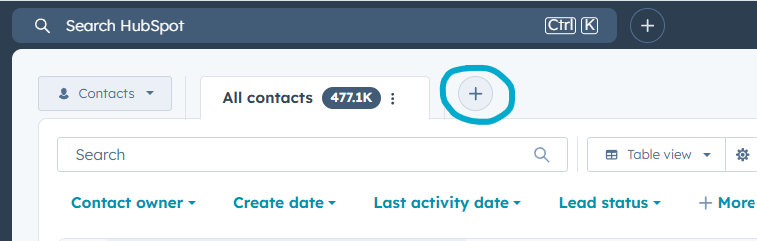
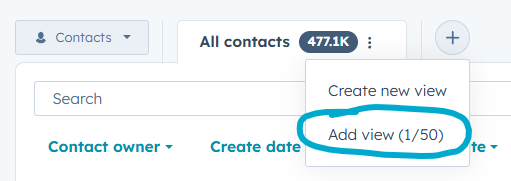
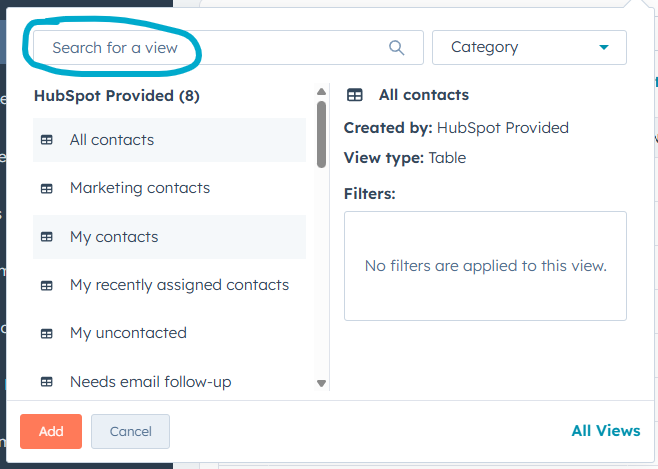
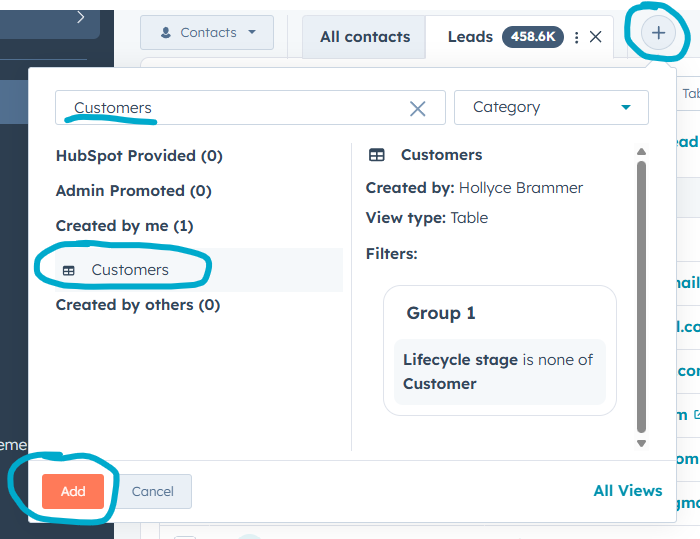
- At the top of the screen, you will see some tabs. Each tab is a view. Click the plus sign, then "Add view."
- Leads
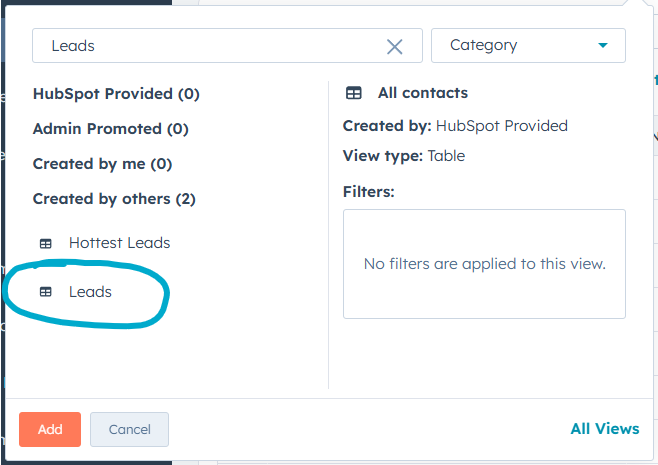
- In the search box, search for the term "Leads." Then, select the view simply entitled "Leads."
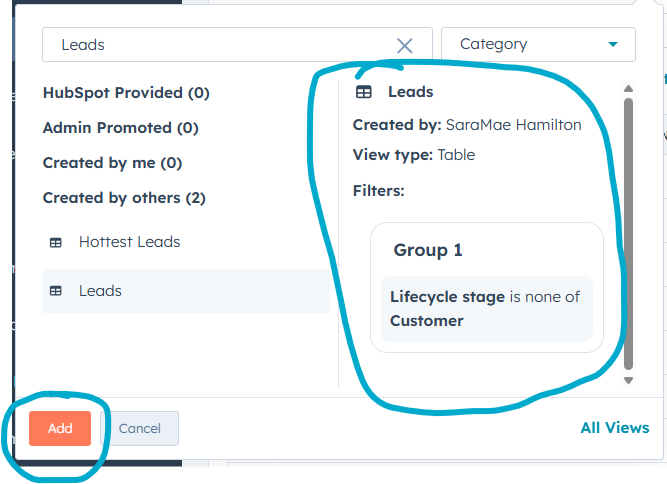
- Once the view is selected, click the orange "Add" button.
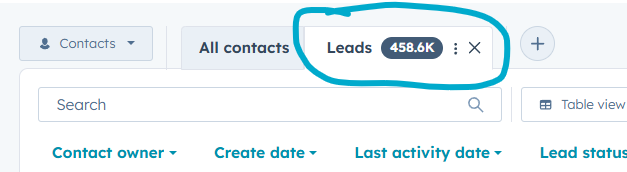
- Now, the "Leads" view will show as a tab.
- In the search box, search for the term "Leads." Then, select the view simply entitled "Leads."
- Customers
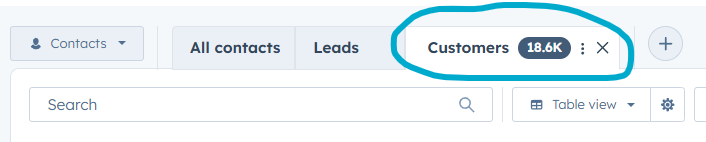
- Follow the same steps as above, except search for "Customers" instead of Leads.
- Follow the same steps as above, except search for "Customers" instead of Leads.
- To add other existing views, follow the same steps as above.
- Note: you can add views on other object screens as well, like Accounts and Deals.
Create a new view
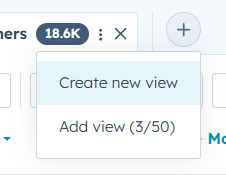
- Click the plus sign next to your tabs. Select "Create new view"
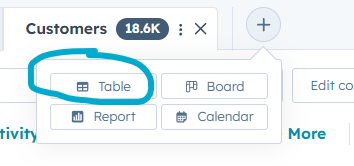
- Select your layout. You will likely want "table."
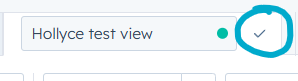
- Name your view, then click the checkmark to save it.
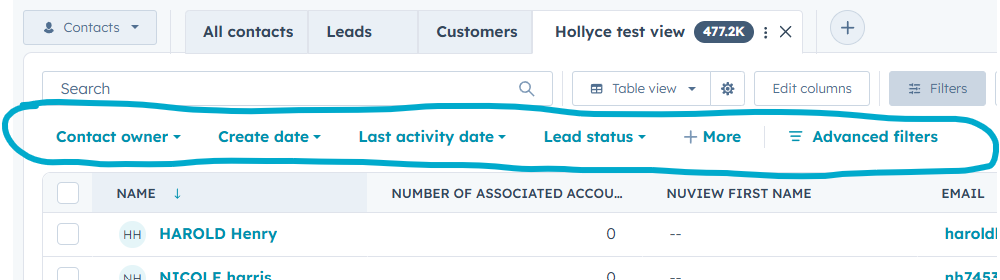
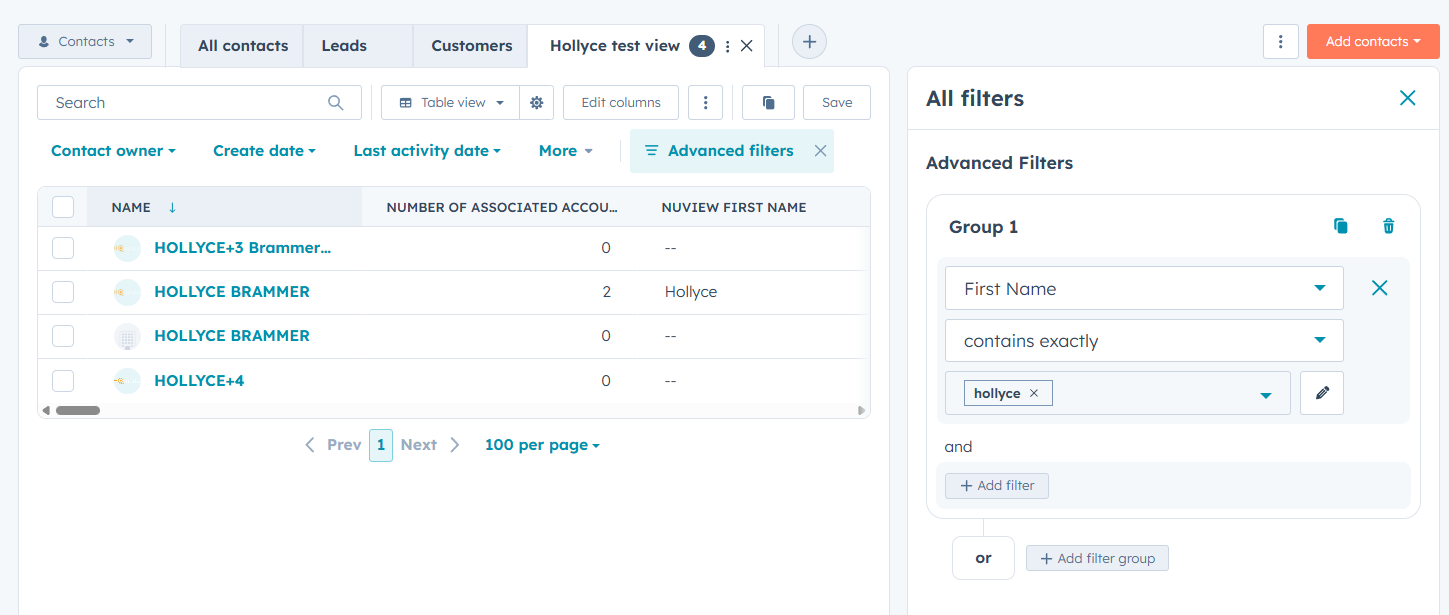
- Once your view is named, add filters to get the list of Contacts (or Accounts, Deals, etc.) you want to see. You can use any of the teal filters along the top of the screen, or "Advanced filters."
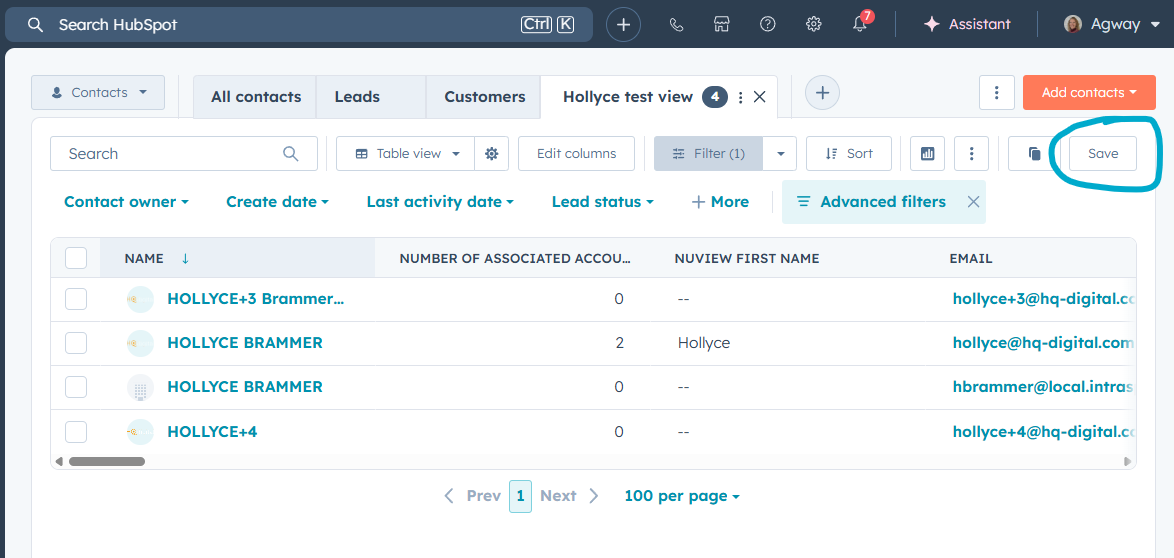
- Important: Once your view correctly shows the records you want, click "Save." Your changes will be deleted if you do not.