![Agway Energy Services Logo_2025.png.png]](https://info.agwayenergy.com/hs-fs/hubfs/Agway%20Energy%20Services%20Logo_2025.png.png?height=40&name=Agway%20Energy%20Services%20Logo_2025.png.png)
Since HubSpot does not deduplicate on phone number, when customers without an email address are manually imported we want to check ahead of time to see if they already exist in HubSpot as an Opt-In lead or other. Follow these steps:
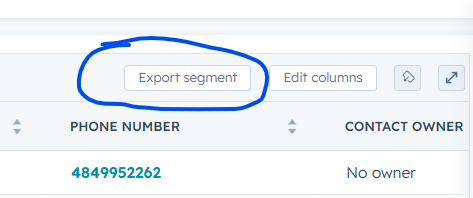
- Export the segment of customers that you would like to check against as an xlsx. It will likely be either one of these:
- In your export, include all relevant columns that will help you identify whether or not the person is a duplicate. First Name, Phone Number, Street Address, etc.
- The next step is to identify which of your new customers are already in HubSpot and to match their existing HubSpot Record ID to their contact. Once you have received your downloaded file, you'll want to create a combined Excel file with 2 Tabs so you can do a VLOOKUP.
- Place your new customer list that you want to import on Sheet 1.
- Paste the entire export from HubSpot in Sheet 2.

- On Sheet 2, the value to be returned (HubSpot ID) has to be placed to the right of the lookup value (Phone number) to be returned correctly. So, move Phone number to the first column of the sheet.
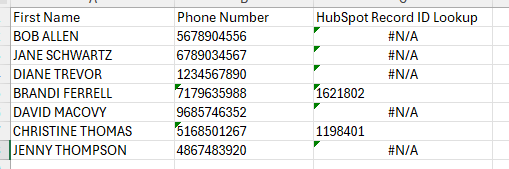
- On Sheet 1, add one new column to the end of the row. This will be your HubSpot Record ID Lookup, where we place the formula and the Record ID is returned from Sheet 2.
- Important: ensure that the Phone Number column on both sheets is formatted as text not a number.
- Enter the VLOOKUP formula into the "HubSpot Record ID Lookup" column on Sheet 1. Your search value is the Phone Number column on Sheet 1, and you are searching the columns that contain Phone Number and Record ID on Sheet 2.
- =VLOOKUP(B2,'Contacts WITHOUT an email addre'!$A:$B, 2, FALSE)
- I uploaded my example file so you can see it in action here: https://info.agwayenergy.com/hubfs/HQ-example-deduping-contacts-before-manual-import.xlsx It will download as an Excel spreadsheet.
- In my test file, the formula correctly returned the HubSpot Record ID ONLY for contacts that were on Sheet 2.
- Double check other information on the contacts that have a HubSpot record ID to ensure that they are exact matches.
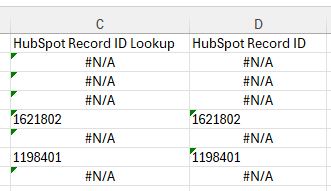
- Once you are sure that the contacts are correctly matched, copy the value of the HubSpot Record ID into a new column.
- Once you have your customer list ready for import, "Save As" this file and remove the second sheet, as HubSpot will not import Excel files with multiple sheets.
- That's it! Double check the import once completed.