![Agway Energy Services Logo_2025.png.png]](https://info.agwayenergy.com/hs-fs/hubfs/Agway%20Energy%20Services%20Logo_2025.png.png?height=40&name=Agway%20Energy%20Services%20Logo_2025.png.png)
Before proceeding, please be sure that you have
- Expired existing (previous) Pending Deals.
- Loaded new Products into HubSpot.
- Loaded new Utility Rate Objects into HubSpot.
Then, continue with generating pending Deals.
- Identify which Accounts need Renewal/Pending Deals created by which Product is active on the current Active Deal. Edit the filter on these lists:
- Export that list of Accounts. In your export, make sure you include the following fields:
- "Time Stamp - Line Items Workflow (Account)"
- "Run Workflow to Create Renewal Deal"
- Populate the Account field “Time Stamp - Line Items Workflow (Account)”
- In order to avoid hitting rate limits, we can send 24 Deals through per minute.
- The first time stamp should be about 3-5 minutes after the time you anticipate uploading the file, on the format of “5/9/2025 11:35:00 AM”
- The first 24 rows of the file can have the exact same time stamp.
- In the 25th row, enter the formula “=[CellRef]+TIME(0,1,0)” with [CellRef] being something like C25 or whatever the bottom populated cell is in the column where you are placing the time stamps. The formula will add one minute to the initial time stamp.
- Populate the formula down to the bottom of the column. It should populate with the exact same minute of time stamps populated on 24 rows.
- If you want to generate Renewal/Pending Deals for the Accounts that you are importing immediately upon import, then you’ll want to set the “Run Workflow to Create Renewal Deal” column to “Yes.”
- Re-import the Accounts file.
- Go to Import.
- Import to "Accounts." Select "Update only."
- Map your fields and import the file.
- Immediately after the import finishes, check to confirm that the first few accounts enrolled in the workflow. All of the accounts will enroll at the same time, then they will sit in the delay step until the time stamp is reached. https://app.hubspot.com/workflows/40211458/platform/flow/1654378569/edit
-
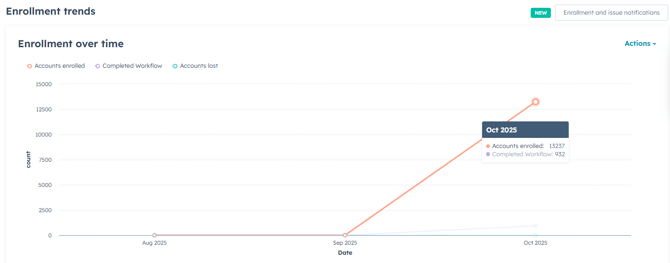
- Check the Performance screen to confirm the number of Accounts you imported matches the number of Accounts enrolled in the workflow. The orange dot on the line graph will show the exact number: https://app.hubspot.com/workflows/40211458/details/1654378569/performance
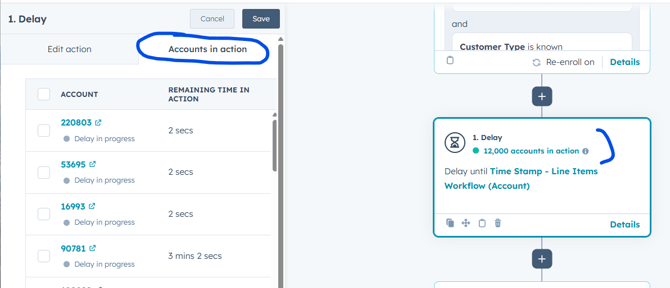
- You can also check the first Delay step. This step will not show an exact number, but you can see how long certain accounts will be in the delay before proceeding.
- Check the Performance screen to confirm the number of Accounts you imported matches the number of Accounts enrolled in the workflow. The orange dot on the line graph will show the exact number: https://app.hubspot.com/workflows/40211458/details/1654378569/performance
- Wait for all Accounts to run through. The length of time it will take is [numberOfAccounts] ÷ 24 rows per min ÷ 60 mins per hour.
-
- Example: If we need to generate 8,860 Renewal Deals, it will take 8,860 Accounts ÷ 24 rows per min ÷ 60 mins per hour = 6.152 hours
Checking Progress of New Import
Were Pending Deals properly created?
- This list of Accounts should NOT have a Pending Deal created:
- The “Accounts with 1 associated Pending Deal that need Pending Deal” lists should equal the number of updated accounts.
- The “Accounts with 0 associated Pending Deal that need Pending Deal” lists should have 0 Accounts on it.
- Electricity Accounts with 0 associated Pending Deal that need Pending Deal
- Natural Gas Accounts with 0 associated Pending Deal that need Pending Deal
- For any Accounts that end up on these lists, we need to re-run them through the workflow.
- Export that list of Accounts. In your export, make sure you include the following fields:
- "Time Stamp - Line Items Workflow (Account)"
- "Run Workflow to Create Renewal Deal"
- Update the time stamp property so that the soonest one is later than the latest time stamp of the original import.
- Edit the column “Run workflow to create renewal Deal” to “Yes.”
- Re-import the list. It will automatically re-enroll these Accounts into this workflow, but we recommend keeping an eye on the performance screen for a couple minutes until you actually see them enroll.
- Export that list of Accounts. In your export, make sure you include the following fields:
- The “Accounts with 2 associated Pending Deal that need Pending Deal” lists should have 0 Accounts on it.
- Electricity Accounts with 2 associated Pending Deals that need Pending Deal
- Natural Gas Accounts with 2 associated Pending Deals that need Pending Deal
- If either of the above lists have two Pending Deals, delete one of them.
Were Line Items correctly added to Deals?
- PENDING Deals with 0 Line Items Associated - This list should be at 0.
- If the above list is NOT zero, the below steps will need to be taken.
- The below segments will help identify the errors with matching Line Items to Deals. When there are Deals on these lists, they have an error:
-
- To re-run these Pending Deals:
- Export the list of Deals.
- Edit the time stamps to be later than the latest original one.
- Re-import your edited list.
- Manually enroll that list in this workflow: https://app.hubspot.com/workflows/40211458/platform/flow/1635300386/edit
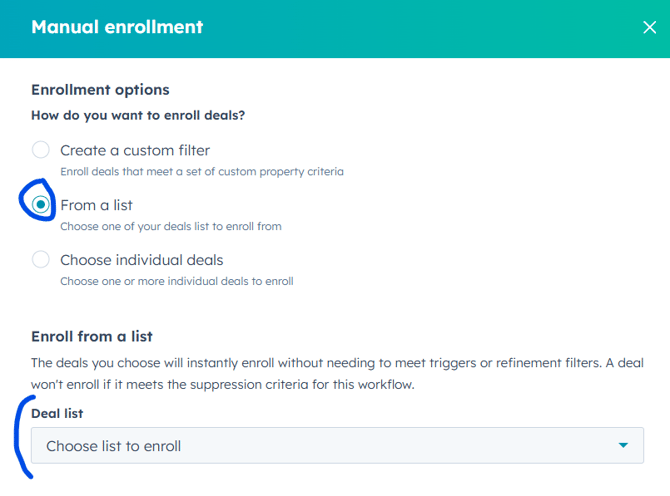
- Select "From a list" and then choose your list.
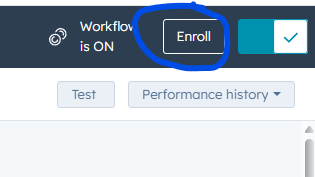
- Click "Enroll."
- To re-run these Pending Deals:
- The following lists should match the total number of Renewal Deals in HubSpot. If they do not, some Pending Deals did not connect to a Line item.
- Deals with 2 Line Items Associated (Renewal Pipeline) should be 0.
Were Pending Deals associated with the correct, newest Products?
- Pending Deals with SKU ending in… can be updated along the way to include the criteria for the most recent set of old products.
- Update the "SKU ends with any of" filter to be the last few identifying characters of the most recent products.
- Rename the list to reflect the new filter.
Were Renewal Letters properly created and associated with Pending Deals?
- “Pending Deals with 0 Letters associated” - Once all Pending Deals are created and Line items are associated, these lists should be at 0.
- “Pending Deals with 1 Letters associated” - These lists should equal the total number of Pending Deals. If it does not, troubleshoot.
- Letters with 5 or more associated Deals - Gut-check that this number feels right.
- Letters with 0 associated Deals - This should be at 0.
- Deals associated to Letters with 5 or more Deals - This list might be helpful if there is an issue with any of the “Expanded” fields not populating. We can re-run only this list through the “Populate” workflow.
- Letters associated to Deals without a Sequence Number needs to be at 0 as well. If it is not, troubleshoot why the Sequence Numbers are not populated on the Deals before running the “Populate Letters” workflow.
- Pending Deals without a Sequence Number Electricity
- Pending Deals without a Sequence Number Natural Gas
- If there are any Deals on this List, you can either manually change the "Sequence Number Stall Time" if it is just a handful, OR you can run them through a workflow that will set the Stall Time.
- Manual:
- If there are any Deals on this List, try sending them through this workflow to resolve it: https://app.hubspot.com/workflows/40211458/details/1647639907/performance
- Even if you send the list through, it is possible that not all of them will get a stall time due to rate limits. Send them through again in 5 mins.
- Letters associated to active Deals should be at 0.
Populating Renewal Letters
Once all Renewal Letters have been created and associated correctly, it is time to populate them! Confirm the following:
- The correct “Pending Deals Ready for ‘Populate Renewal Letter’ workflow” for your commodity contains the same number of Deals as the total number of Pending Deals you created.
- Pending Deals ready for "Populate Renewal Letter" workflow, Electricity
- Pending Deals ready for "Populate Renewal Letter" workflow, Natural Gas
- If the numbers do not match, these are either missing a Sequence Number or a Consent Letter association. Both of those should have been resolved with the previous steps.
- Turn on this workflow: “Populate Renewal Letters - DO NOT RUN until all Pending Deals have a Sequence Number and are associated to a Renewal Letter”
- It will take about 1 hour to run, maybe longer depending on the number of Deals.
- Check the list of Deals with "Date info populated known." When the numbers match, that means all have completed it.
- Turn off the workflow when done.
Checking Renewal Letters
- The Renewal Letter export view is here: https://app.hubspot.com/contacts/40211458/objects/2-41503435/views/46159666/list
- Change “Object create date” to the date(s) that the Renewal Letters were generated.
- If there are errors on a few letters, the best way to re-populate these is to clear out the “expanded” fields and re-run the entire workflow.
- Deals associated to Letters with no Utility rate or Utility Message should be at 0. If it is not, troubleshoot this.
- Letters with 5 or more associated Deals - This is a quick reference list to confirm that the “Expanded” fields populated correctly.
If You Need to Re-Generate the Letters:
- Delete all information from the "Expanded" fields. They can be seen on this list: Letters with 5 or more associated Deals.
- Clear out the field "Date Info was populated on Renewal Letter" on the Deals you just sent through. Adjust this list as needed, then clear out the property: https://app.hubspot.com/contacts/40211458/objectLists/2175/filters
- Turn on this workflow: “Populate Renewal Letters - DO NOT RUN until all Pending Deals have a Sequence Number and are associated to a Renewal Letter”
- Wait about 1 hour.
- Turn off workflow.