![Agway Energy Services Logo_2025.png.png]](https://info.agwayenergy.com/hs-fs/hubfs/Agway%20Energy%20Services%20Logo_2025.png.png?height=40&name=Agway%20Energy%20Services%20Logo_2025.png.png)
Prepare the Import File and Import It
- When you import consent, we will want to match the consent information you are importing to the correct Deal Record ID. Export all "NY Consent Pending Deals." Use VLOOKUP to match the correct Deal Record ID to the correct row in your consent import file.
- You will use "Deal Record ID" as the Deal unique identifier and "ARID" as the Account unique identifier. In our case, since there is only one Account associated with each Deal, we can have the Account information on the same rows as the Deal information.
- Import to Pending Deals:
- Set "I accept the renewal contract" as "Yes"
- Set "Express Consent Type" to "PAPER", "TPV-NV" if it was NuView or "TPV-CC" for CSRs.
- For any Deals that have "Express Consent Type" as "TPV-NV" or "TPV-CC," we also need to import a column called "Deal TPV Status" with value "PASSED TPV."
- Leave the "Deal TPV Status" column blank for any Deals that were PAPER consent.
- Set "Express Consent Date" to the date you received consent. You'll need to choose the correct date format in the import wizard (e.g. mm/dd/yyyy or yyyy-mm-dd)
- Import to Accounts:
- Set "Renewal Available, Needs Consent" to "No."
- We do NOT want to set the "I accept the renewal contract" field on Accounts. Its only purpose is to make workflows run and we clear it out as soon as properties change.
- Question: We have a date stamp property for "Renewal Available Date Stamp." It is populated by automation when Pending Deals are created/Renewals are available. Currently, we do not clear it out, so it stays marked until the next Renewal cycle when the date is replaced. Do you want to clear it out, or keep it populated with the most recent date even after a renewal is accepted?
- Go to the Import screen. Select both "Deals" and "Accounts."
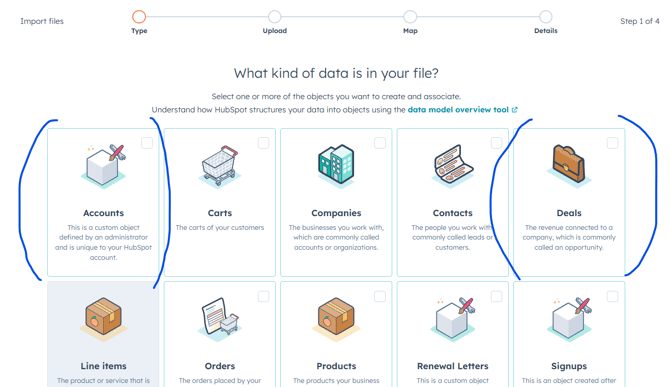
For updating Accounts, simply import only the one field named above using ARID as a unique identifier.
Deals and Accounts can be imported on the same file.
Check that the Import and Automations were Successful
- Wait a few minutes after your import to give the HubSpot automations time to run. You can check the import for errors during this time.
- Check the Import for errors on the import screen. Consider correcting the errored rows if needed.
- Check that the Deals you imported moved to the "Contract Active" Deal stage:
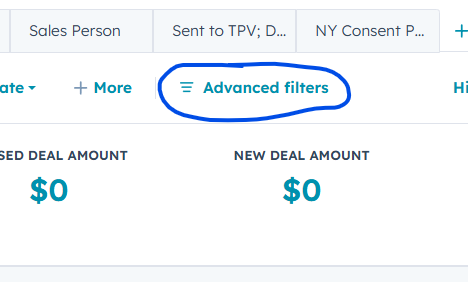
- From the Deals screen, filter the view to only include Deals from your import.
- Take note of the number of Deals that were in your import.
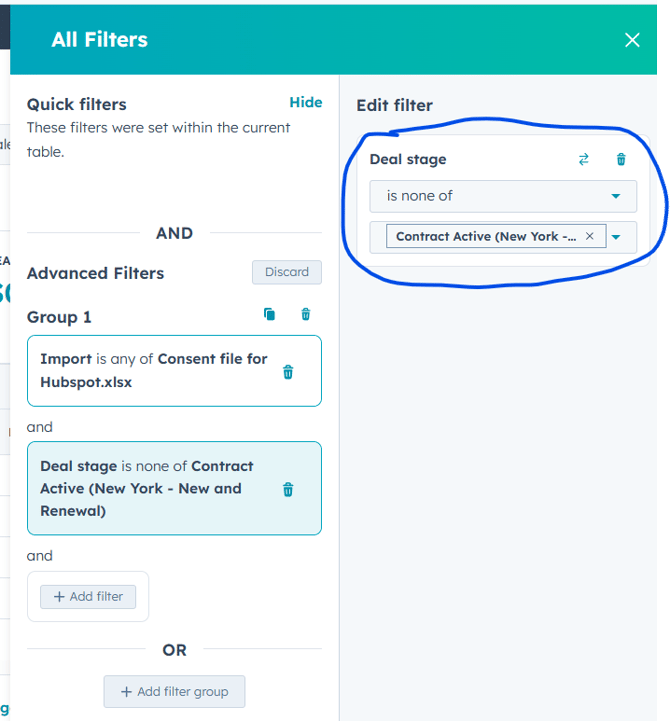
- Now, we need to confirm that all of these Deals moved to the "Contract Active" stage. You'll want to add another filter to check this.
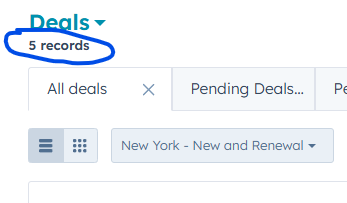
- Check the number of Deals in the list now. It should exactly equal the number of Deals in your import.
- From the Deals screen, filter the view to only include Deals from your import.
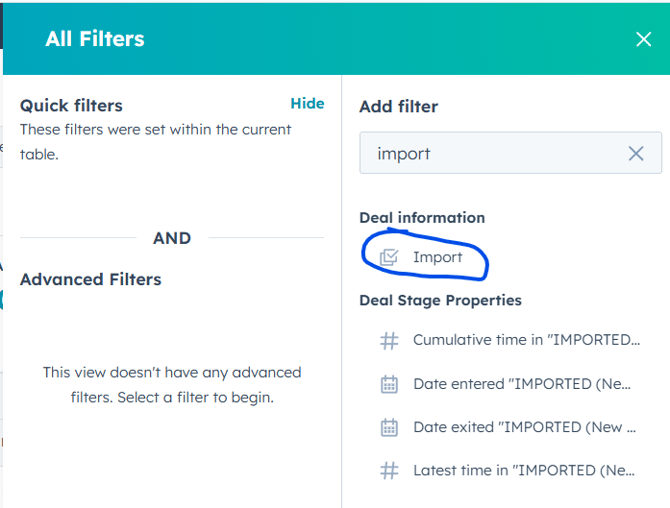
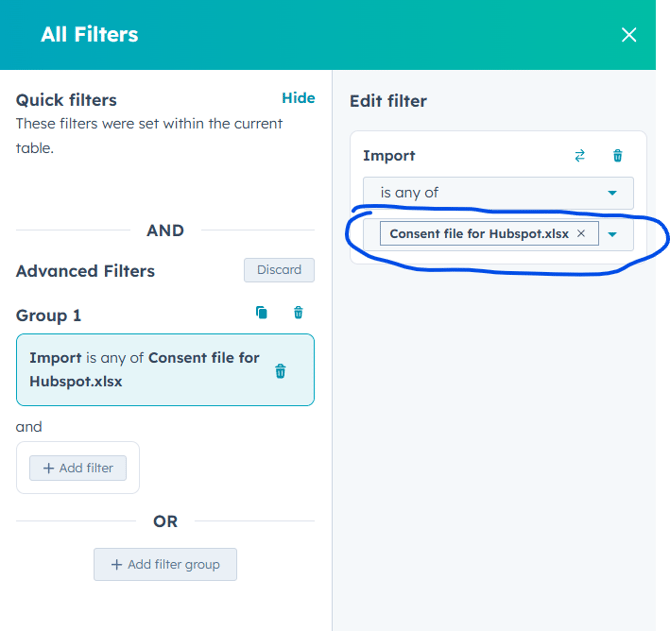
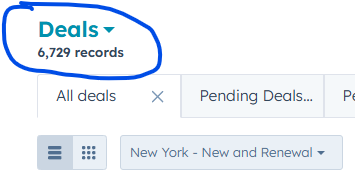
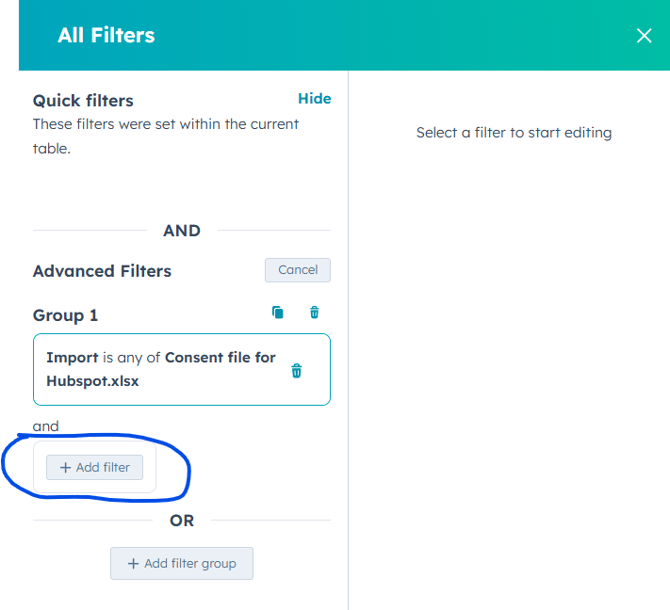
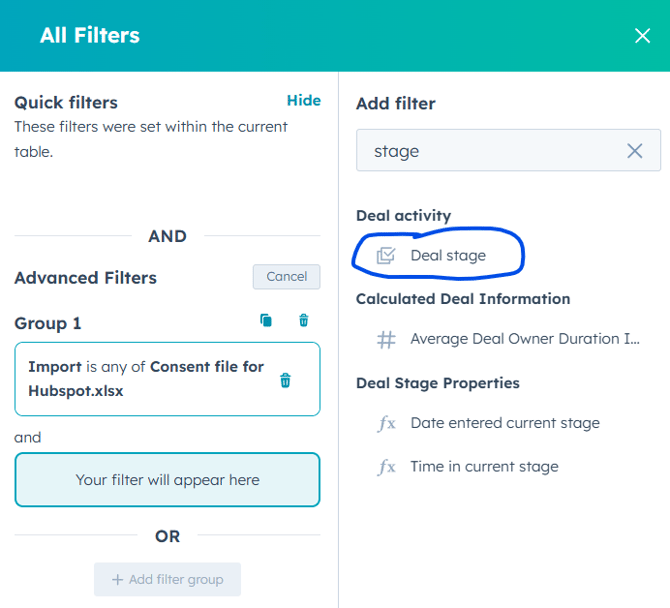
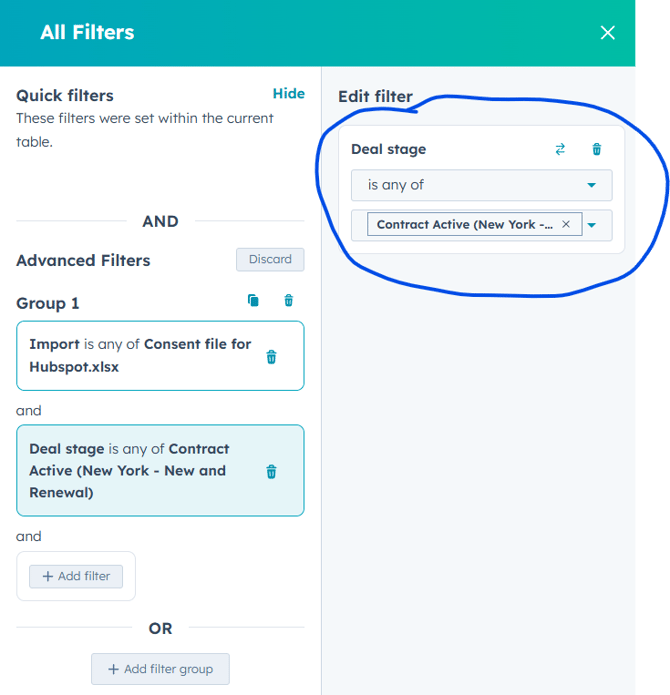
If it does match:
Good to go! All is well. 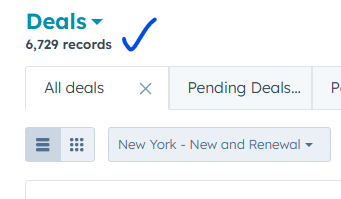
If it does NOT match:
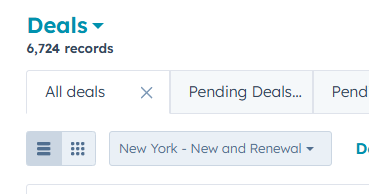
- Identify with Deals are not active by switching the filter to "is none of."
- For this example, 5 Deals need attention:
- Open one of these Deals. See what Deal stage it is in.
- If the Deal is "Contract Inactive," it is likely that the Drop Date on the Account has passed. Check to confirm.
- If the Deal is "Consent Pending," it is likely that not all of your properties imported correctly. Go to "View all properties" and check every value for the properties you imported.
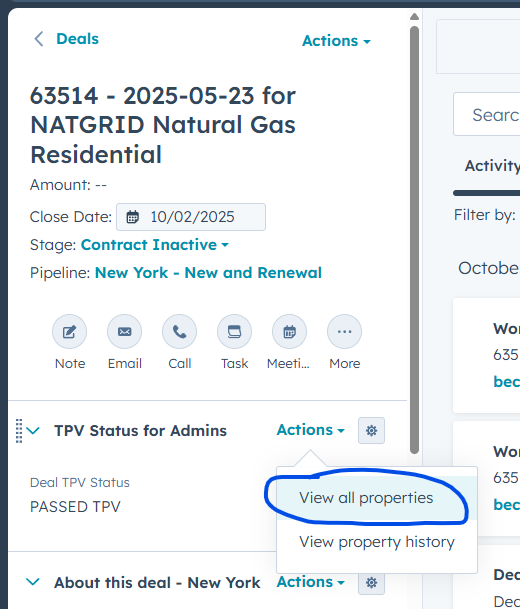
- If the Deal is "Contract Pending," it means that either TPV was not passed or a workflow failed. Check to see if the Deal is stuck in this workflow: STATUS: Set "Contract Pending" Deal to "Contract Active" once NS Index Start is reached