![Agway Energy Services Logo_2025.png.png]](https://info.agwayenergy.com/hs-fs/hubfs/Agway%20Energy%20Services%20Logo_2025.png.png?height=40&name=Agway%20Energy%20Services%20Logo_2025.png.png)
- Before importing any new objects, make sure the following workflows are turned off:
- Prepare the import file
- Contacts without an email address
- Option A, good for identifying contacts who might already be in HubSpot as Opt-in leads: De-duplicating contacts before manual import
- Option B, good for identifying duplicate contacts outside of HubSpot:
- Create a “Temp ID” column.
- Populate the “Temp ID” column with a concatenation of “BillingCustomerName,” “BillingAddressLine1” and “BillingZip4.”
- Save out a file that only contains the “BillingCustomerName” field (which you will map to “First Name” in HubSpot) and the “TempID” field. De-deuplicate this file in Excel so that each name and Temp ID only appears once.
- Import this file to “Contacts” in HubSpot. Be sure to “create a list” on import. This step will create HubSpot Record IDs that can then be used as unique identifiers.
- Export the list you just imported to retrieve the HubSpot Record IDs.
- Use your exported file as a VLOOKUP table for your import file. Populate the HubSpot Record ID on the import file for each row there is a matching Temp ID.
- Once everyone has either an email address or a HubSpot Record ID, you are ready to import all of the contacts.
- Account fields
- Change Type
- Add
- Winback
-
Reinstate --> See "Reinstatements" instructions.
- Change Type
- Deal fields
- Pipeline - select depending on state.
- “New York - New and Renewal”
- “Pennsylvania”
- Deal Stage
- “Contract Active” for Deals you want to be immediately active upon import
- “Contract Pending” for Deals that you want to import but should not be immediately active.
- Deal Name - Concatenate several fields into the format:
- [accountARID] - [soldDate] for [utility] [commodity] [billingCustomerType] [zone]
- Example: 192749 - 2025-05-22 for NYSEG Electricity Residential C
- Association Label -
- For both New York and Pennsylvania Deals:
- Active Deal if Active
- Consent Pending if consent needs to be received.
- Contract Pending if consent has been received but the start date is not reached yet.
- For both New York and Pennsylvania Deals:
- Populate the Deal field “Time stamp for line items workflow”
- In order to avoid hitting rate limits, we can send 16 Deals through per minute.
- The first time stamp should be about 3-5 minutes after the time you anticipate uploading the file, on the format of “5/9/2025 11:35:00 AM”
- The first 16 rows of the file can have the exact same time stamp.
- In the 17th row, enter the formula “=[CellRef]+TIME(0,1,0)” with [CellRef] being something like C17 or whatever the bottom populated cell is in the column where you are placing the time stamps. The formula will add one minute to the initial time stamp.
- Populate the formula down to the bottom of the column. It should populate with the exact same minute of time stamps populated on 16 rows.
- Pipeline - select depending on state.
- Contacts without an email address
- Navigate to the Import area within HubSpot.
- Click “Import a file,” then “Start import.”
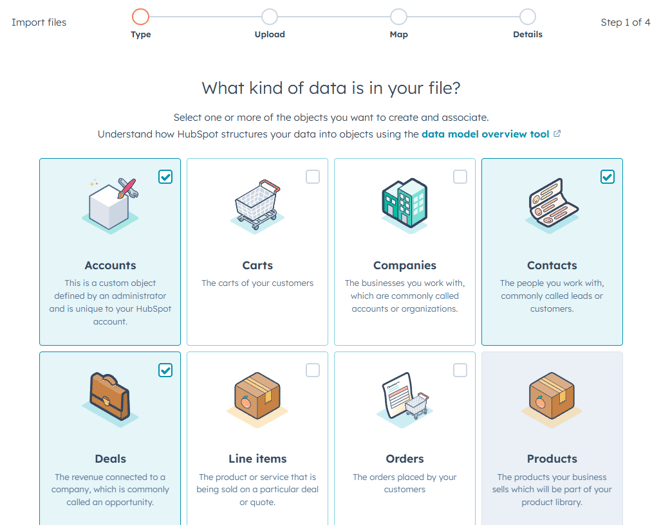
- This file contains Contacts, Deals, and Accounts, so you will want to select all of those objects.
- On the next screen, upload your import file.
- Choose how to import each item. If you are confident that all Contacts, all Accounts, and all Deals are brand new, then I recommend selecting “Create new [Objects] only” for all three. For any objects that might already exist within HubSpot, I recommend selecting the “Create and update [Objects]” for that one. I would think Contacts are the object most likely to already exist.
- On the next screen, map the fields from your import file to the correct properties in HubSpot.
- Please be careful to select the property of the correct object. There are cases where the same field name exists on, say, Accounts and Deals, but they need to be imported to the correct place to work.
- Use this Agway: HubSpot Load Data Field Mapping Definitions reference file to ensure that columns in the import file successfully map to the correct HubSpot field: https://docs.google.com/spreadsheets/d/1rPa6ZMK0f3qXs9MndPZfxZbfj-_3xCcGys84S7_C-yE/edit?gid=0#gid=0
- To map the association label, use the dropdown field in the import wizard that you would use to choose the object property type and choose "Association label."
- Finish the import. If you are importing a large number of rows, it might take a while.
- Were any of the imported Accounts (which are actually updated) Win Backs, where the Account has a Drop Date that needs to be cleared? If so, we need to bulk edit those. Importing a file with a blank value will not overwrite an existing value. Please do the following:
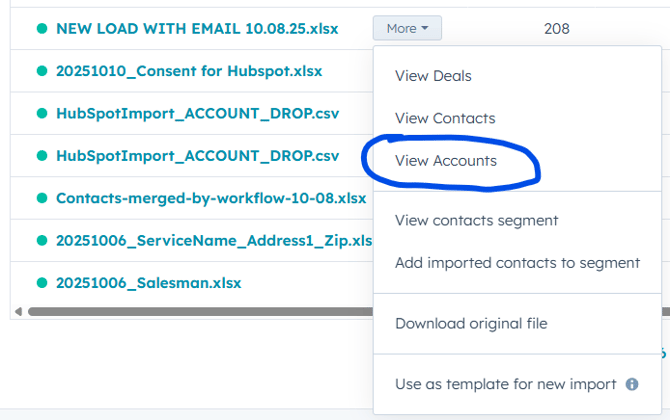
- Navigate to the Segment of all Accounts that were part of the import.
- If you created a Segment upon import, you can find it under Segments.
- If you did not create a segment, you can navigate to the filtered view through the Imports screen.
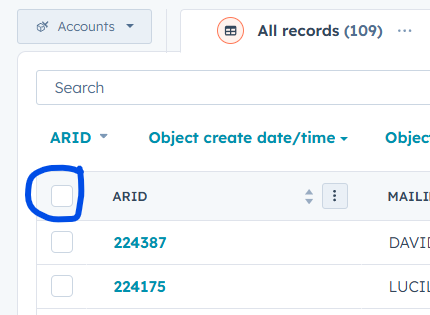
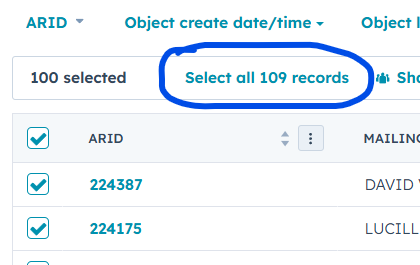
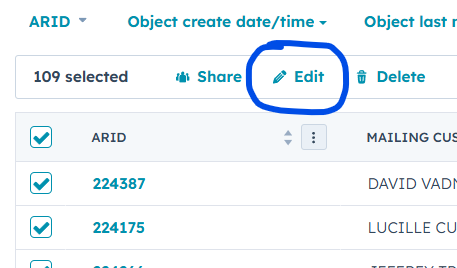
- Select all Accounts.
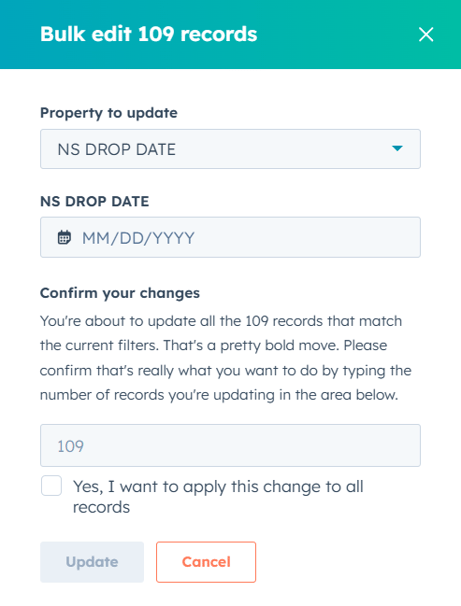
- Edit and select the field "NS DROP DATE."
- Navigate to the Segment of all Accounts that were part of the import.
-
- Clear it by leaving the date blank.
- Update.
Checking Progress of New Import
- Wait until after the last time stamps were in your import files before checking, as the active list numbers will continue to change as data changes.
- There are several checks that need to be done along the way to ensure that objects were correctly associated, line items connected the way they needed to, and that other data populated in the way it needed to. We have assembled a folder of Active Lists in HubSpot that can be used to assess if the import was successful.
- If there are any test accounts, remember to exclude these from your total count.
- You do not need to be logged into HubSpot for the workflows to be running. They run constantly in the background.
Did Accounts properly associate with active Deals?
- Accounts with 0 associated Deals - This list should be at 0
- Accounts associated to Imported Deals created within the last 7 days - This list should exactly match the number of newly created Accounts. Broken down:
Did Active Deals properly associate with Line items?
- Lists to check:
- ACTIVE Deals with 1 Line Item Associated should match the total number of Active Deals in HubSpot.
- ACTIVE Deals with 0 Line Items Associated should be at 0.
- Deals with Line Items Error: "HTTP-Code: 429" Rate Limit hit a rate limit. These will need to be updated with a new Time Stamp that is later than the last time stamp you included on the initial import and re-run.
- Deals with Line Items Error: "Product with matching properties not found." did not find a matching product. Please check these to confirm that the information on the Deal is correct, and that there is a Product in the Product table that matches exactly.
- Deals with Line Items Error: "HTTP-Code: 400" means that something went wrong with the search. If any Deals appear on this list, re-run them and see if that resolves it.
- Deals with Line Items Error: NOT Other Error are Deals that have an unidentified error. You might need HQdigital to look at these.
- To re-run Active Deals that have an error:
- Export the list of Deals that need to be re-run.
- Edit the time stamp to be later than the last time stamp of the initial import.
- Re-import the list.
Did Accounts properly associate with Utility Rate Objects?
- Accounts with 1 associated Utility Rate Object should equal the number of Accounts in HubSpot.
- If it does not, this list identifies the ones that need attention: Accounts with 0 associated Utility Rate Objects
- If a Utility Rate did not properly associate, it is likely because the “Utility Rate Lookup” value did not populate properly on the Account. Check this workflow history: https://app.hubspot.com/workflows/40211458/platform/flow/1635794201/edit