![Agway Energy Services Logo_2025.png.png]](https://info.agwayenergy.com/hs-fs/hubfs/Agway%20Energy%20Services%20Logo_2025.png.png?height=40&name=Agway%20Energy%20Services%20Logo_2025.png.png)
- Log into HubSpot.
- If you have not accepted your membership invitation email, please do so.
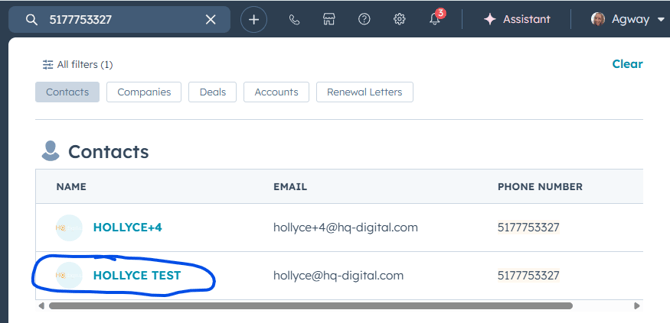
- Search for the Contact who is on the phone. Use the global search at the top of the HubSpot window. Phone number is the most accurate way to search, but you can also search by name or street address.
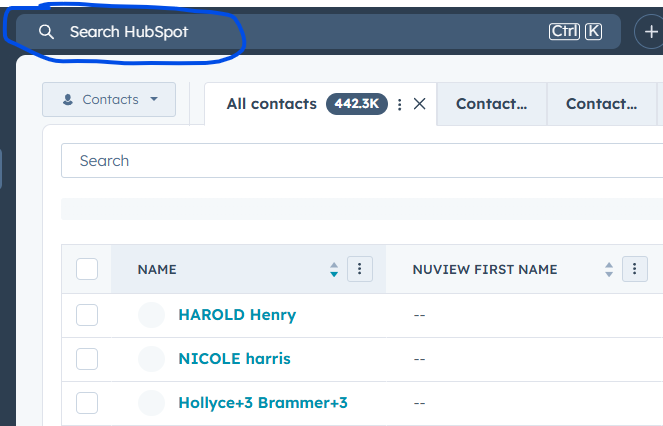
- If you find a matching contact, click the name.
- If you do not find a matching contact, you will need to create one.
- In the left-hand sidebar, click "CRM," then "Contacts.
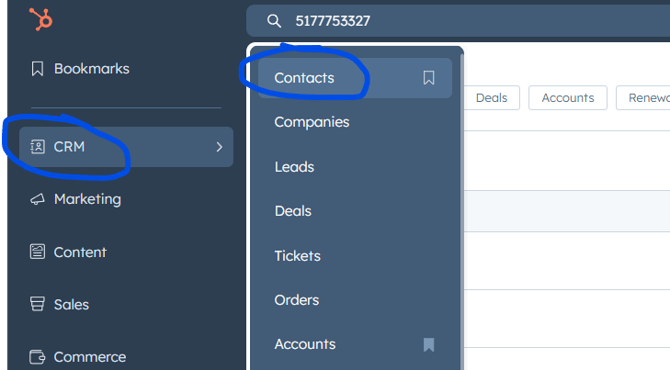
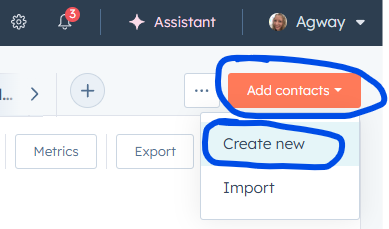
- Then, click the orange "Add contacts" button in the upper right and select "Create new."
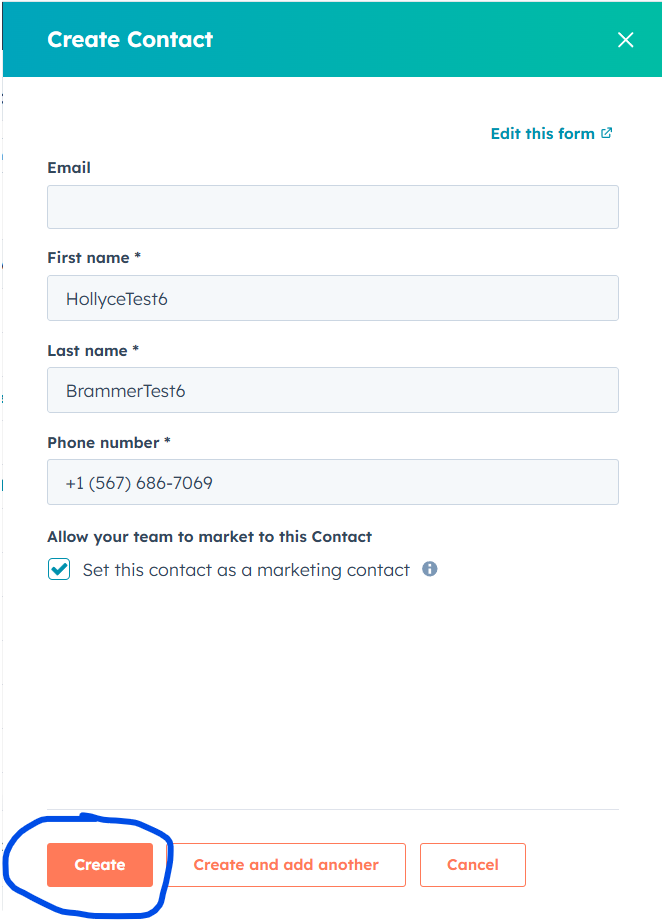
- A form like this will appear. Start typing in one of the fields for the rest of the form to appear. "Email" is not required. Please check the box to set the contact as a marketing contact; this setting allows Agway to email them. Click the orange "Create" button.
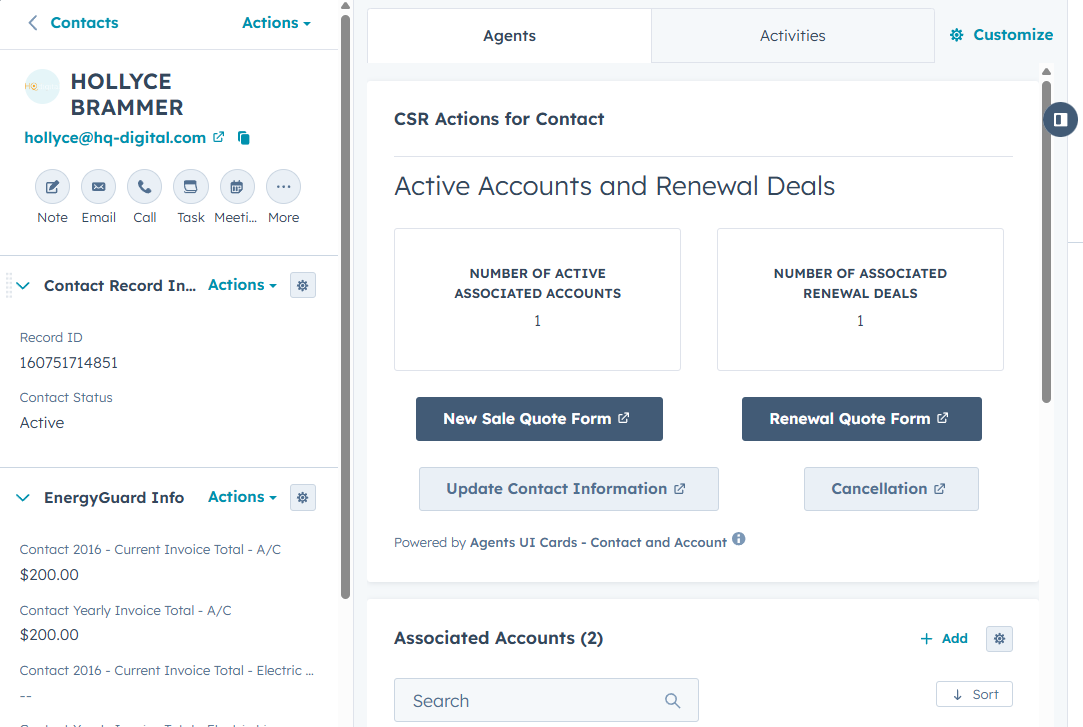
- Wait for a moment until you see the screen fully load. The top part of the screen will include buttons with various actions.
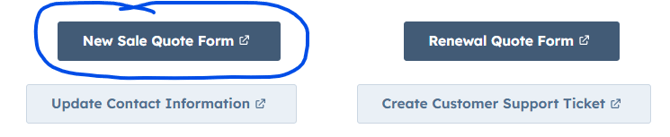
- This test contact already had two associated Accounts as you can see from the screenshot. But, let's say that she wants to sign up for a new Service Address. Click the "New Sale Quote Form" button.
- A new window will open with a dashboard you will use to both retrieve a price quote and, if the customer chooses to continue, sign them up. The dashboard might be blank, or there might be existing cards for previous signups.
- Click the green "New Quote" button either at the top of the screen or the middle of the page.
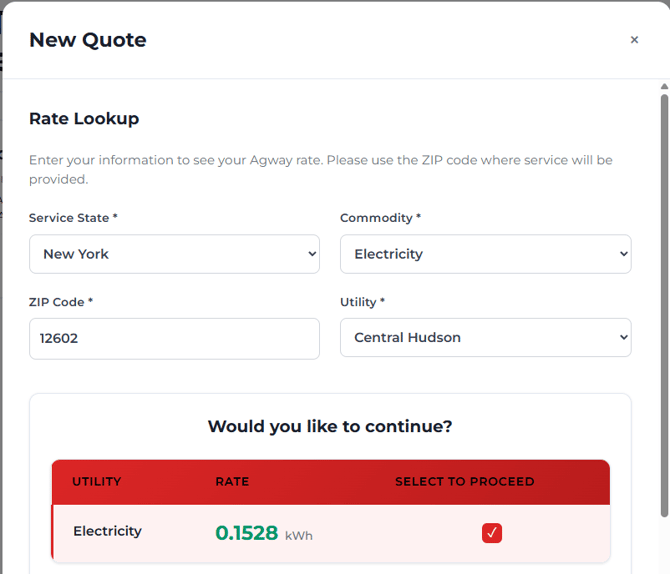
- The first part of the form is a quote form that will retrieve a rate or rates.
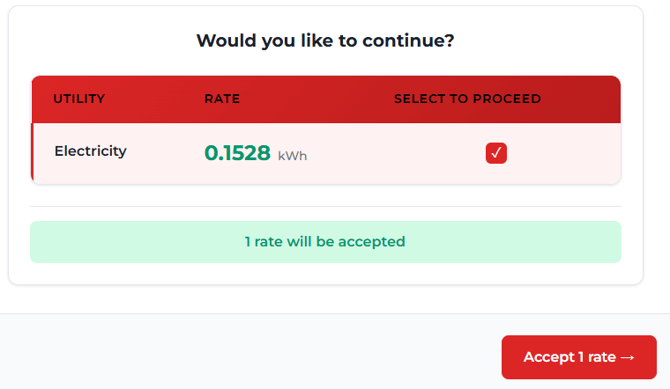
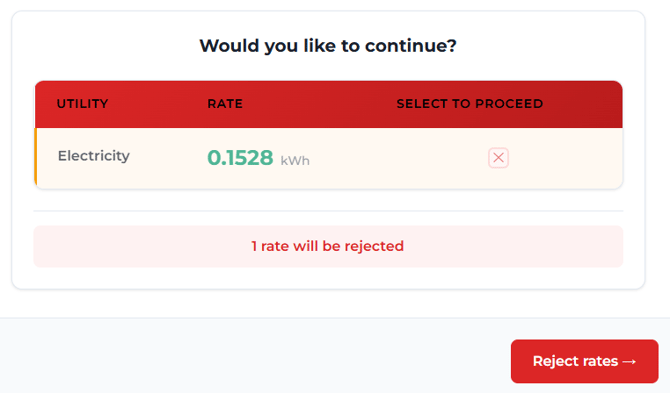
- Scroll down to either accept or reject the rate(s).
- Accepting the rate means the customer is continuing with the Signup process.
- Rejecting the rate means that the price quote will be recorded in HubSpot, but the customer is not signing up.
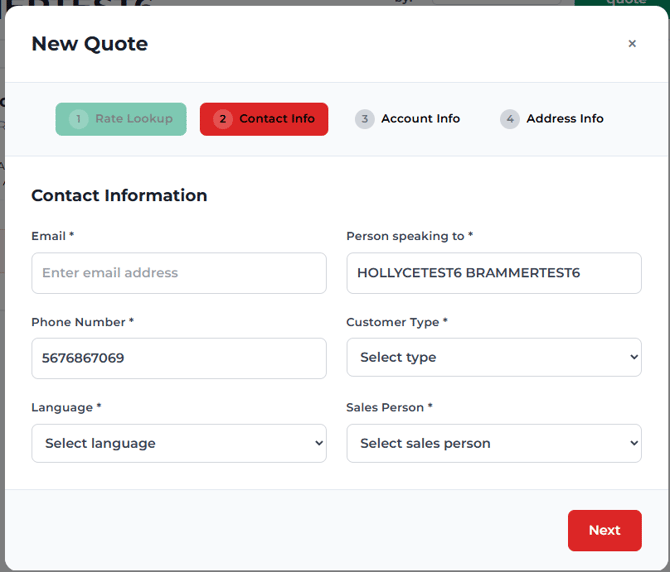
- If accepted, continue filling out the rest of the screen in the form.
- Once all quotes have been completed, they will show on the dashboard. The ones marked as "Ready for Submission" have all the information needed to be submitted to TPV.
- You can either select single cards for submission, or "Select All for Submission."
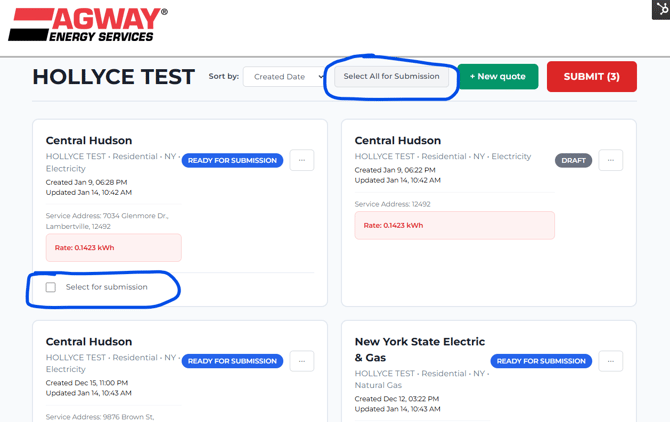
- Then, click the red "SUBMIT" button.
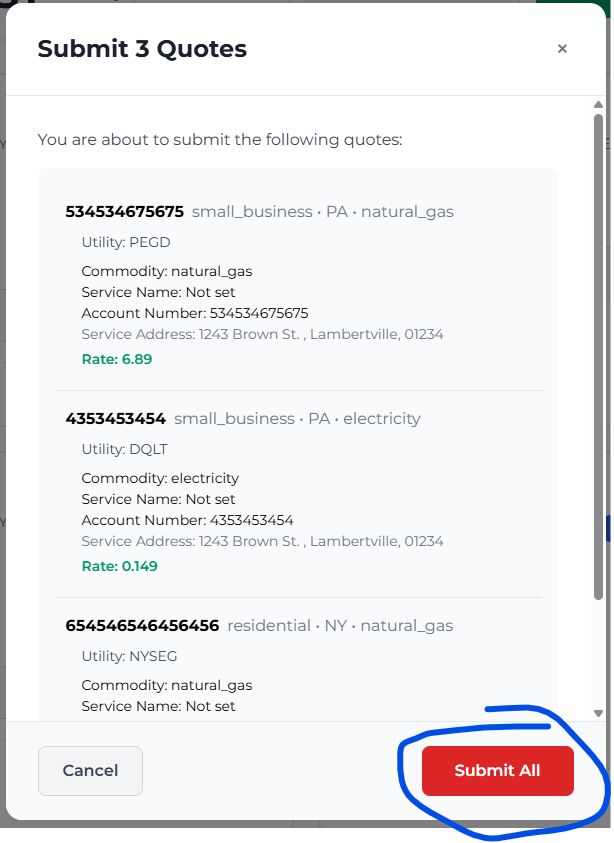
- On the confirmation screen, double-check all information. Then, scroll to the bottom and click the red "Submit All" button.
- A pop-up window will display the TPV confirmation code and the phone number you need to call for new signups.
- Accepting the rate means the customer is continuing with the Signup process.