![Agway Energy Services Logo_2025.png.png]](https://info.agwayenergy.com/hs-fs/hubfs/Agway%20Energy%20Services%20Logo_2025.png.png?height=40&name=Agway%20Energy%20Services%20Logo_2025.png.png)
Signup objects need to be created within HubSpot and associated with the correct contact.
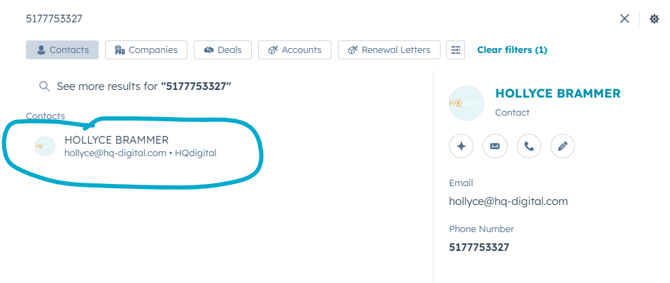
- Search for the Contact. Use the global search at the top of the HubSpot window. Phone number is the most accurate way to search, but you can also search by name or street address.
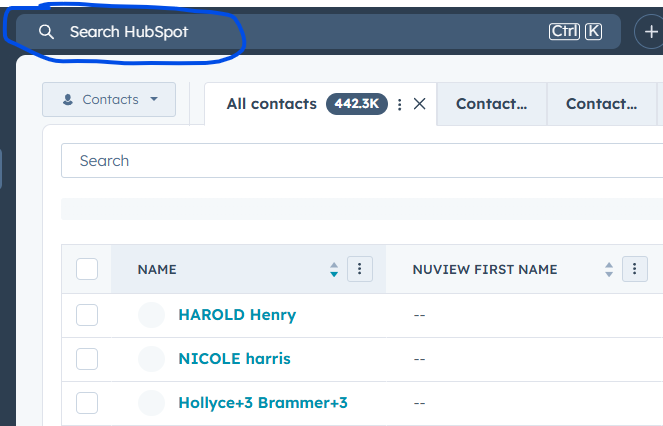
- If you find a matching contact, click the name.
- If you do not find a matching contact, you will need to create one.
- In the left-hand sidebar, click "CRM," then "Contacts.
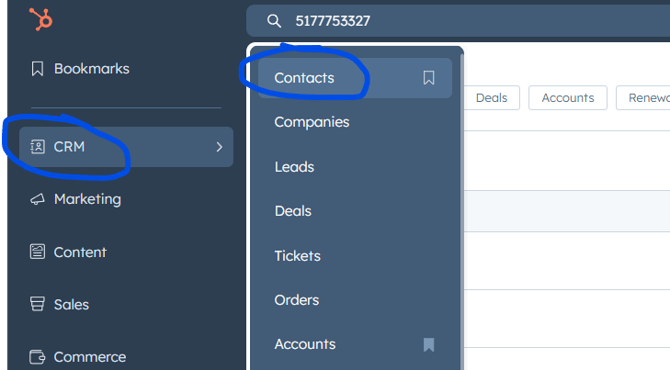
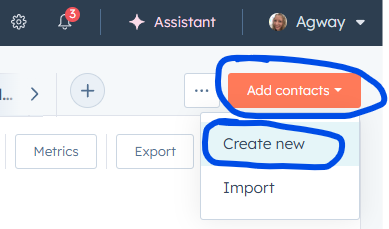
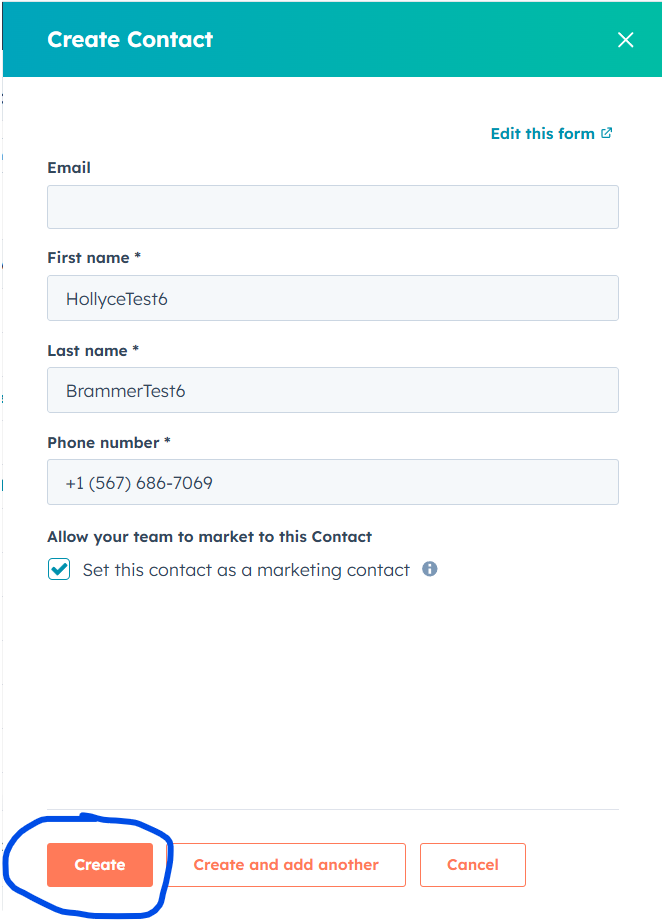
- Then, click the orange "Add contacts" button in the upper right and select "Create new."
- A form like this will appear. Start typing in one of the fields for the rest of the form to appear. "Email" is not required. Please check the box to set the contact as a marketing contact; this setting allows Agway to email them. Click the orange "Create" button.
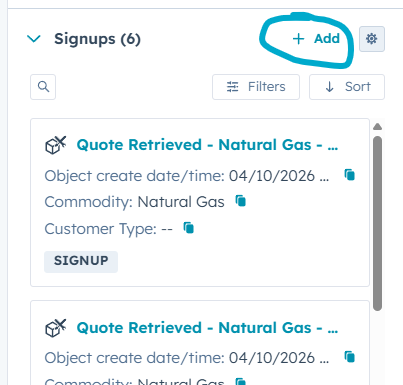
- After you have navigated to the correct Contact object, you will need to create a new Signup object. Look for "Signups" in the right-hand sidebar.
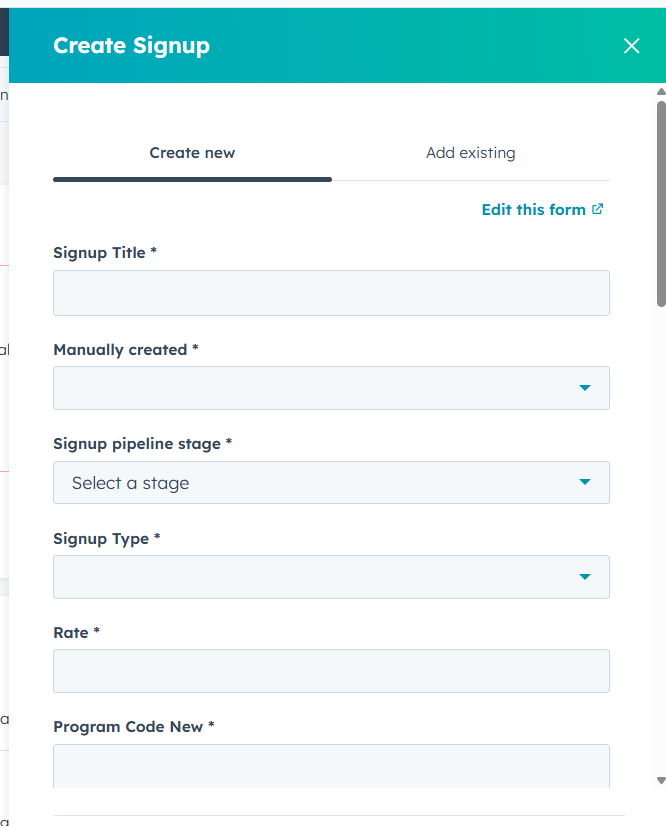
- Fill out the form to create the Signup.
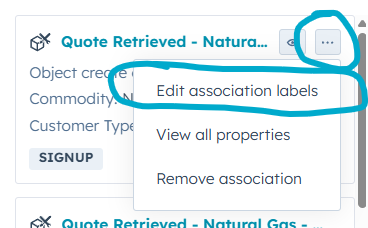
- Once the Signup is created, select the association label "Signup" on the Contact sidebar.
- Once the Signup has been approved to be entered into NirvanaSoft or Vertex, set the "Agway Approval Status" to "Agway Approved."