![Agway Energy Services Logo_2025.png.png]](https://info.agwayenergy.com/hs-fs/hubfs/Agway%20Energy%20Services%20Logo_2025.png.png?height=40&name=Agway%20Energy%20Services%20Logo_2025.png.png)
Overview
The Agway HubSpot portal has an automation set up that will compare the price quoted during customer signup to the line item (product table) price added to the Deal once it is created. If the prices do not match, it creates a task that is added to the “Price mismatch” task queue and assigned to Denette.
Correct the Line Item
The tasks in the “Price mismatch” queue are associated with the Account, the Deal, and the Signup objects. Denette will receive an email regarding the task. Follow these steps to correct the line item:
- Navigate to the Deal. You can do this in any of the following ways:
- Click the Deal link in the task email.
- Open the task from the task email and navigate to the Deal from there.
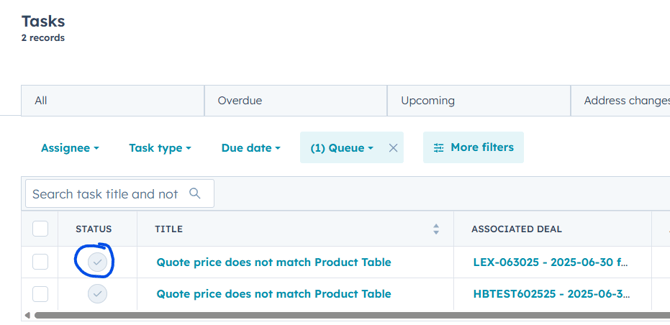
- Go to the “Price mismatch” task queue. Find the task you want to address and click into the associated Deal.
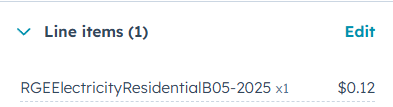
- Find the Line item section in the lower right-hand sidebar. Click the “Edit” link.
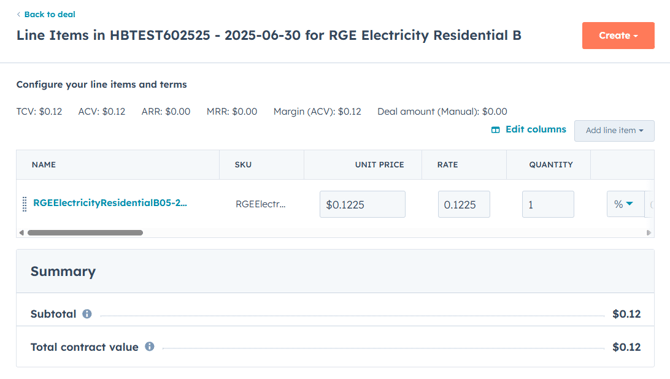
- On the full line-items screen, manually edit both the “Unit price” and the “Rate” column. These changes will only affect this line item on this particular Deal. They will not edit the Product in the Product Table.
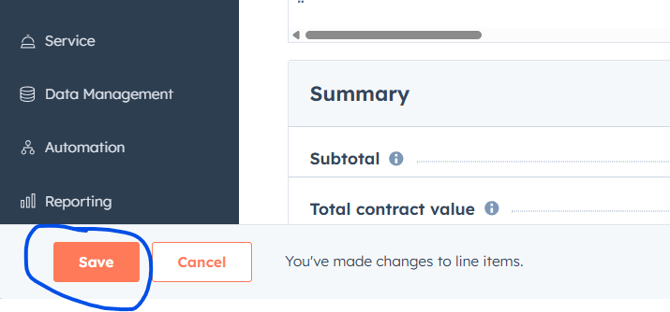
- Once you edit the price, an orange “Save” button will appear in the lower left corner.
Complete the Task
Once your changes are saved, complete the task. You can complete it from either of these places:
- On the Deal screen, the blue task bar will appear at the top of the screen. Click the “Complete” button.
- From the “Price mismatch” task queue, click the checkbox in the “Status” column to complete the task.