![Agway Energy Services Logo_2025.png.png]](https://info.agwayenergy.com/hs-fs/hubfs/Agway%20Energy%20Services%20Logo_2025.png.png?height=40&name=Agway%20Energy%20Services%20Logo_2025.png.png)
Stop Sell
When pricing is no longer available, you will need to locate the views of relevant Accounts and Signups, then bulk edit them.
- Locate the view(s) you need to edit depending on which pricing is not available.
-
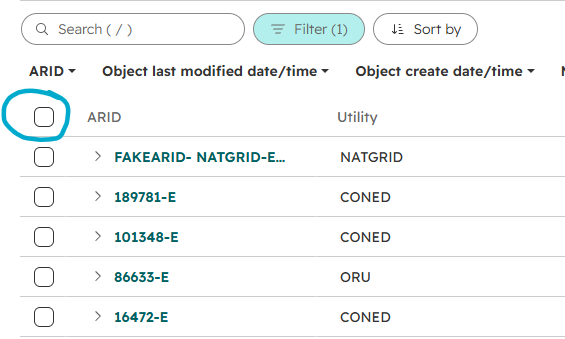
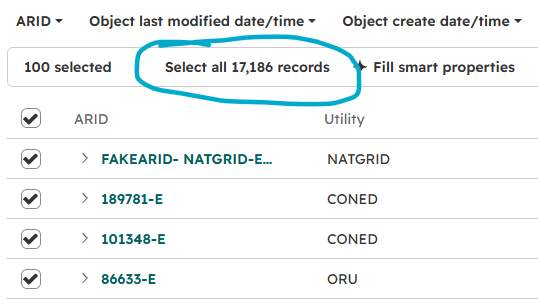
Select all records in the view by clicking the top checkbox in the header row, then the link showing the number of all records in the view.
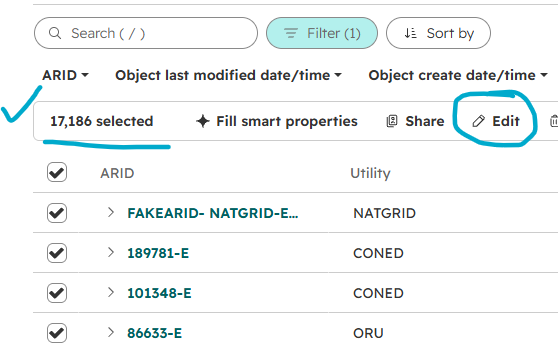
- Once all records have been selected, click "Edit."
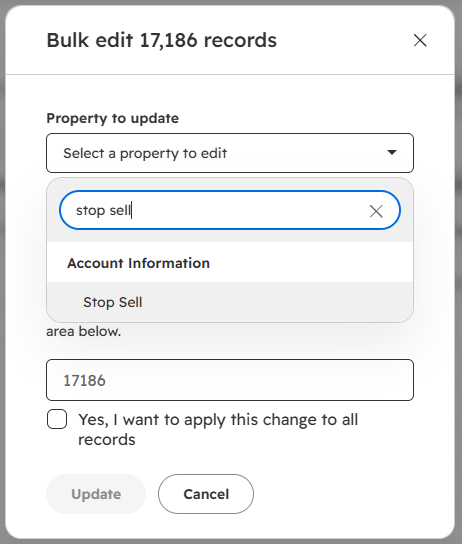
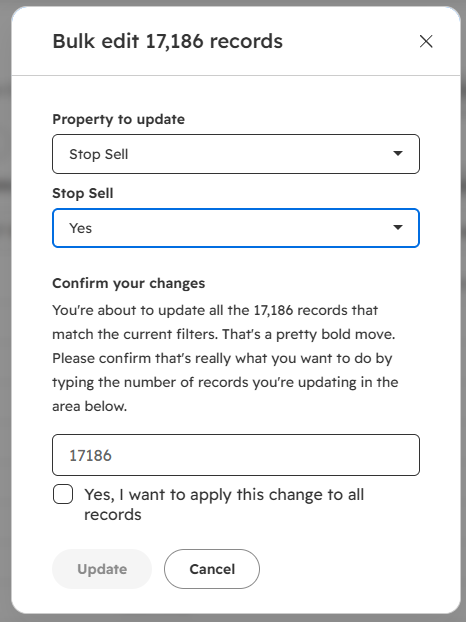
- In the modal window, search for the property "Stop Sell." The property name is the same on both Accounts and Signups.
- Set the property to "Yes." Confirm the change by typing the number of records to edit and checking the box. Then click "Update."
- Be sure to repeat the process for the other object. For example, if you edited Accounts first, make sure to follow the same process for relevant Signups.
- If you want to check to see if Contacts are correctly removed from Dialer campaigns, check the "Performance" screen on these workflows:
Start Sell
When pricing becomes available again, you will want to follow the same process as above for "Stop Sell," except set the property "Stop Sell" to "No" on the edit screen.
- If you want to check to see if Contacts are correctly sent back to the Dialer campaigns, check the "Performance" screen on these workflows: