![Agway Energy Services Logo_2025.png.png]](https://info.agwayenergy.com/hs-fs/hubfs/Agway%20Energy%20Services%20Logo_2025.png.png?height=40&name=Agway%20Energy%20Services%20Logo_2025.png.png)
- Navigate to "Properties" in the back end of HubSpot under "Settings -->Data Management --> Properties."
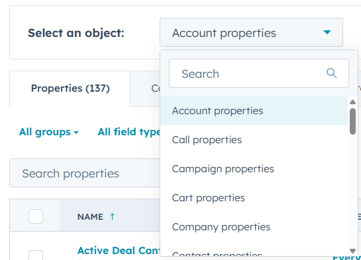
- The three properties that will need edits are on the Account. Select "Account properties" from the Select an object: dropdown:
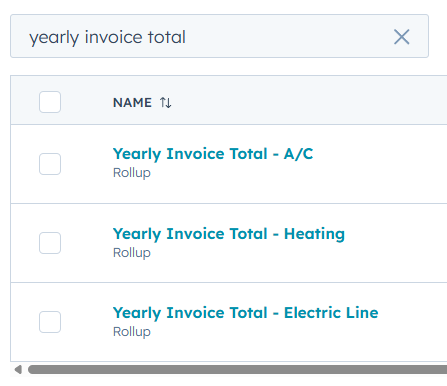
- The only properties we need to edit are the "Yearly" calculations. Search for the term "Yearly Invoice Total." You should get these three results.
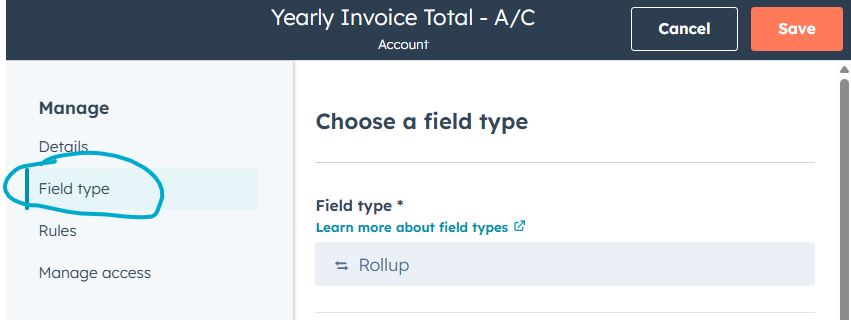
- Click into one of the properties. In the left-hand sidebar, click "field type."
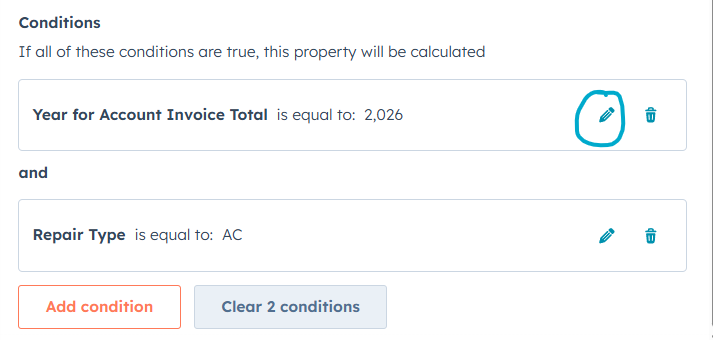
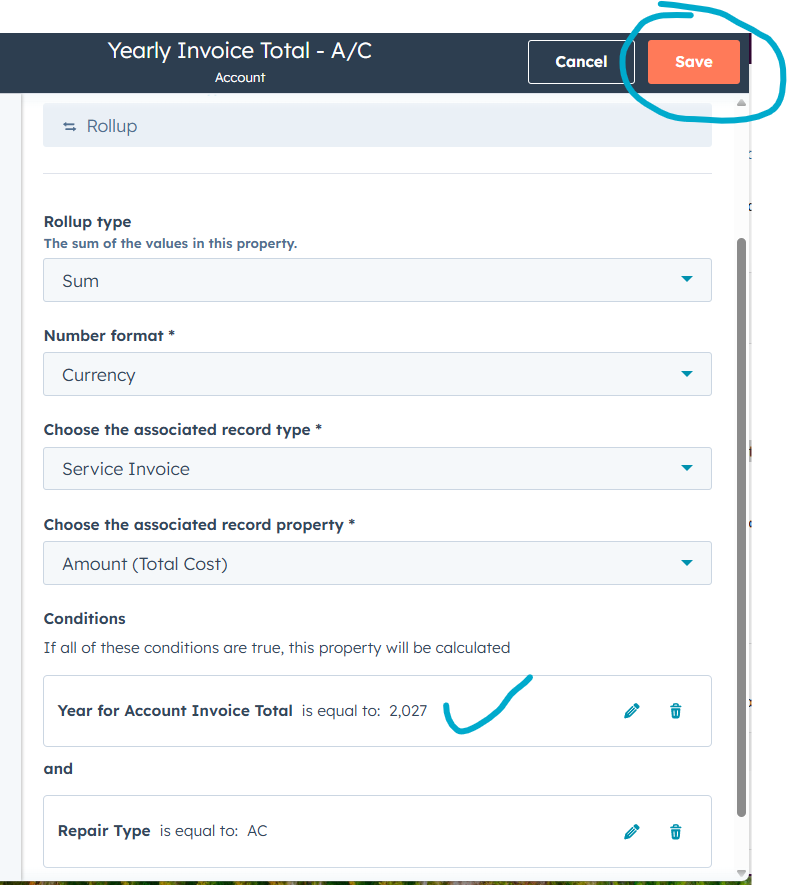
- Scroll to the bottom of this screen. Under "Conditions," you'll want to edit the "Year for Account Invoice Total." (Please ignore the comma; HubSpot formats the value like a number even though it is a year.) Click the pencil icon.
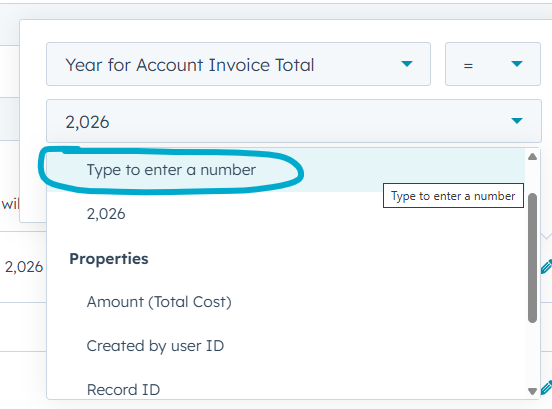
- There will not be a selection for you to choose. You will need to type to enter a number. Simply place your cursor in the dropdown field and begin to type.
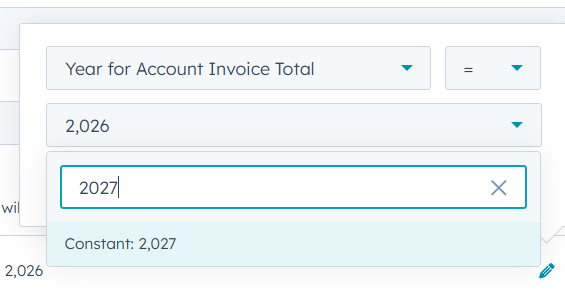
- You'll need to click "Contstant: x,xxx" to save the year you typed.
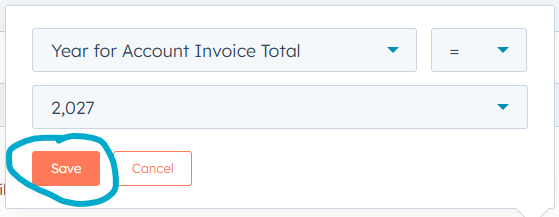
- Be sure to click the orange "Save" button in the pop-up window.
- Double check that the correct new year is showing. Then, click the orange "Save" button in the upper right-hand corner of the screen.
- Repeat for the other two Account "Yearly Invoice Total" properties.
- Note: you do not need to edit the "Yearly" properties on the Contact since they roll up from the Account.