![Agway Energy Services Logo_2025.png.png]](https://info.agwayenergy.com/hs-fs/hubfs/Agway%20Energy%20Services%20Logo_2025.png.png?height=40&name=Agway%20Energy%20Services%20Logo_2025.png.png)
- Navigate to HubDB under "Content --> HubDB."
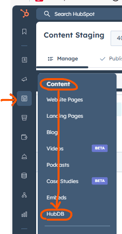
- Click the "Price Quote Lookup for NY and PA" table.
- Export the entire table by clicking "Actions--> Export."
- Update the table with new "Price" and other fields where relevant.
- "ZIP" only needs to be entered for NY Electricity.
- "Customer Type" does not need to be entered for NY Electricity, but does for all other rows.
- "Product End Month" needs to be entered for all NY rows, but not PA rows.
- Only PA rows need "Utility Address," "Utility Cap Phone," "Utility Customer Service Phone," and "Utility Emergency Phone" to me populated.
- Ignore the "Product SKU" column for now.
- If any of the ZIP codes changed zone, you will need to do this step too. "New Program Code," "Program Code Renewal" and "Program Code Can" (Cancellation) are the TPV program codes. Filling these in consistently and correctly takes some work, as we need to use different VLOOKUP formulas from the TPV download file to make it work. Please do the following:
- Add three new sheets to your exported HubDB file: "Program Code New," "Program Code Renewal" and "Program Code Cancellation."
- On the first tab of the sheet (the original export), add columns of "new_program_code_CONCAT," "program_code_renewal_CONCAT" and "program_code_can_CONCAT." These are the values you will use to correctly place the right program code in the correct cell.
- Use this sheet as an example: Download the example XLSX file with lookup formulas.
- Add the "Utility Abbreviation" column to each of the three "Program Code" sheets and populate it accordingly.
- Add a "Rate in Dollars" column to each of the three "Program Code" sheets and populate it accordingly.
- Add a "DataConcatenation" column to each of the three "Program Code" sheets immediately before the "Program Code" column. Use this as the VLOOKUP match value.
- "New" concatenation
- For NY: Utility + Commodity + Rate in Dollars
- For PA: Utility + Commodity + Market + Rate in Dollars
- "Renewal" concatenation
- For NY: Utility + Commodity + Rate in Dollars
- "Cancellation" concatenation
- For NY and PA: Utility + Commodity
- "New" concatenation
- Back on the first sheet, populate the "***_CONCAT" columns in the same way.
- On sheet 1, use VLOOKUP formulas to populate the correct Program Codes in the correct columns. Reference your other sheets. Example formula:
- =VLOOKUP(U2,'Program Code Renewal'!L:M,2,FALSE)
- Spot check your work.
- Import your new file by clicking "Actions --> Import." Replace the entire table; we do not want to add rows or the Price Quote Form might return the incorrect row.
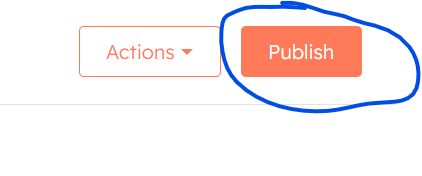
- If you want the new prices to take effect immediately, publish the table. If not, then follow the instructions below.
Schedule Publishing the HubDB table
This automation allows you to schedule a publish of HubDB, so the prices will not become live in the price quote tools until midnight.
- The workflow "Ops: HubDB Publish new prices at midnight" will delay until that date and time you specify, then publish the prices via API call.
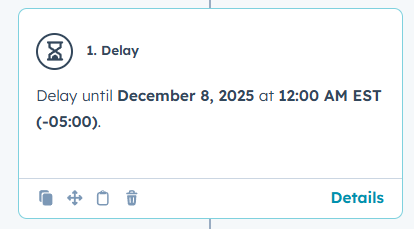
- Click into the workflow and edit the "Delay" step to be the date and time you want the new prices to publish.
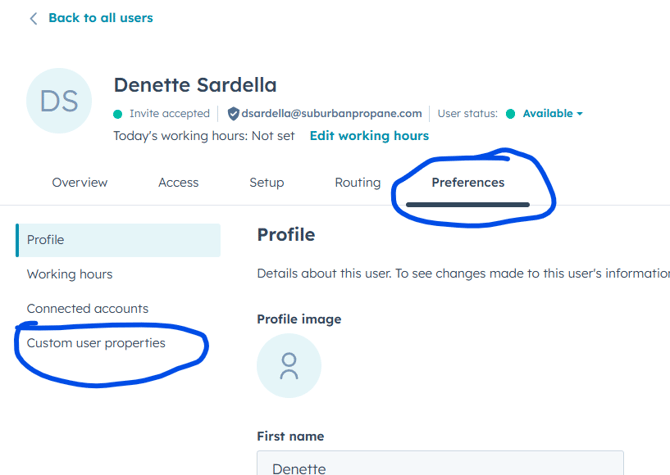
- Then, edit the user property "Publish New Prices?" to enroll you in the workflow. Go to your user settings. "Settings --> Users & Teams," then click into your name. This article uses Denette as an example.
- Click "Preferences," then "Custom user properties."
- Expand the "User information" section.
- Set the property "Publish New Prices?" to "Yes."
- That's it! After the delay has passed, you can test to ensure that the correct prices are showing by using the price quote form.